
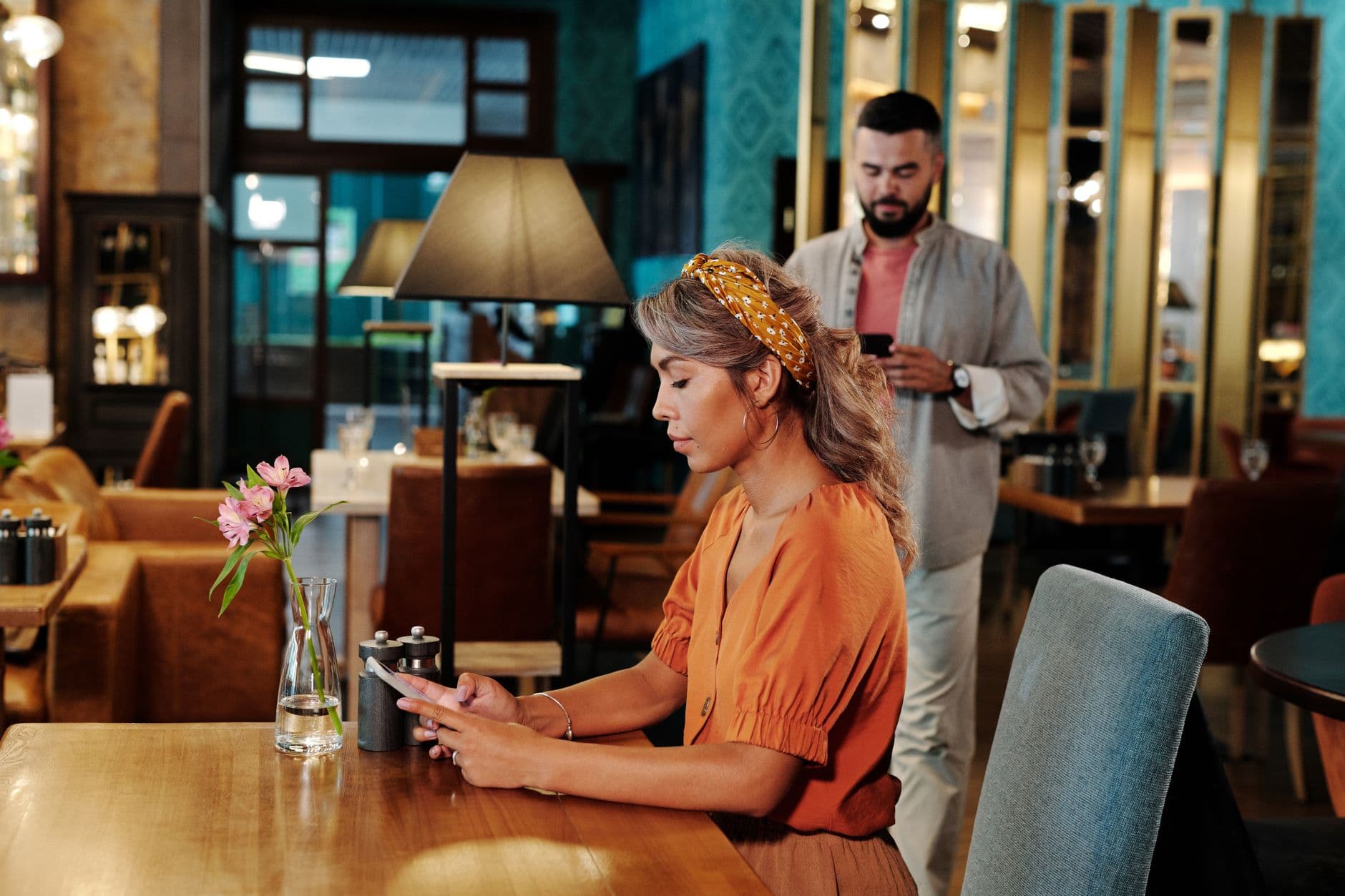
Cloud server digital signage is the better fit when screens need remote updates, schedules, and multi-location control. Local server digital signage fits closed networks and content that rarely changes. Visora is cloud-based: it runs in a smart TV browser, the Visora TV app for Amazon Fire TV, or a Windows app, and starts at $0 for 1 screen.
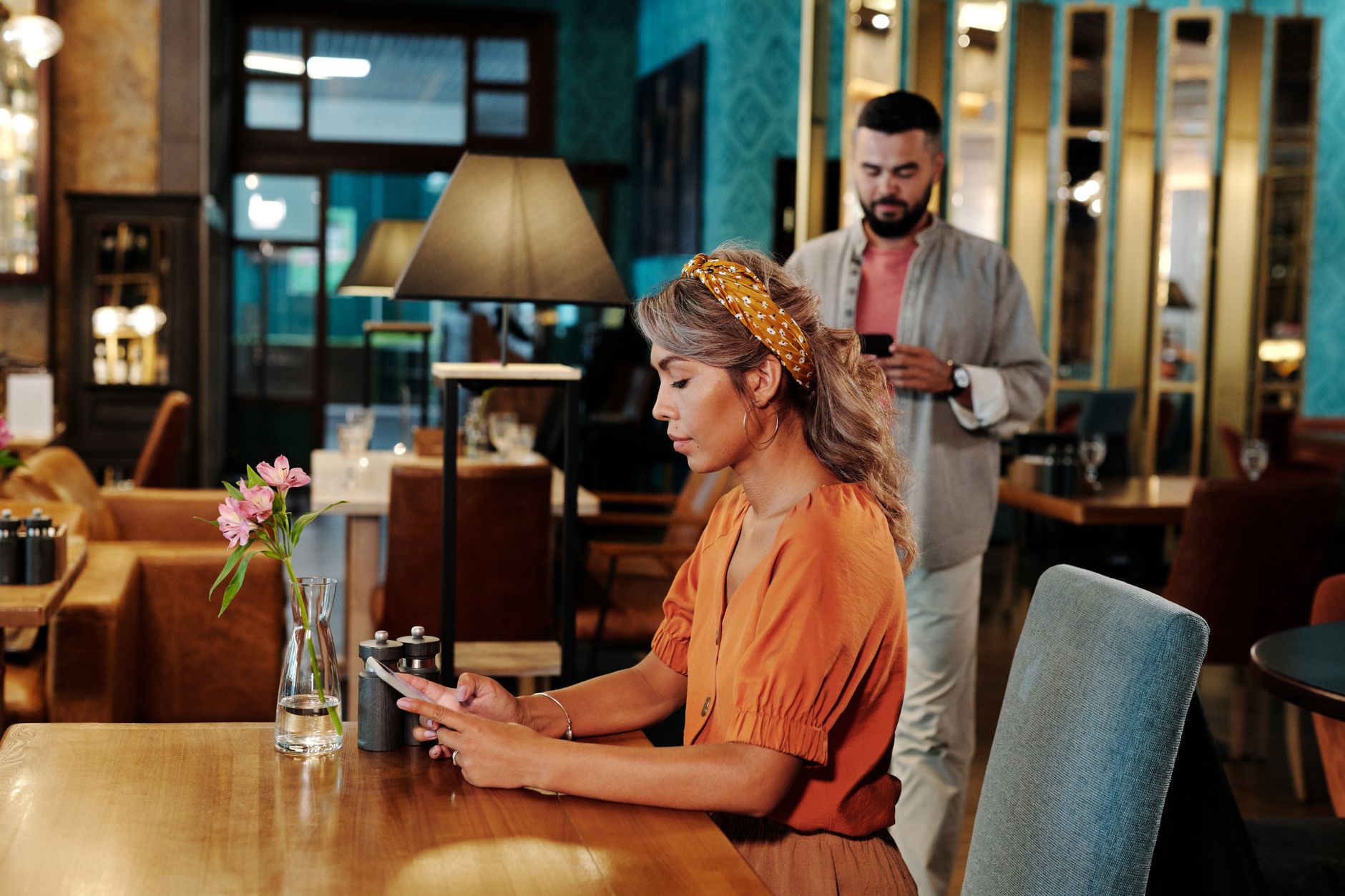
Photo by Jep Gambardella / Pexels
Cloud server vs local server digital signage at a glance
A cloud server setup hosts the content management system (CMS) online, so the vendor runs the server and you publish from any browser. A local server setup runs the CMS on a machine inside your building or network, so your team owns it. Here is the short decision table:
| Factor | Cloud server digital signage | Local server digital signage |
|---|---|---|
| Upfront cost | Low: a software plan plus the screens you already own or small players | Higher: an on-site server, software licenses, and setup labor |
| Ongoing cost | A monthly subscription (per screen or bundled) | Server upkeep, backups, upgrades, and staff time |
| Content updates | From any browser, at any location | From inside the network, or over a VPN |
| Offline behavior | Depends on the player: endpoints that cache content keep playing through short outages, so test yours | Keeps running on the local network if the internet drops; stops if the local server fails |
| IT effort | The vendor hosts, patches, and backs up the server | Your team owns the server, security patches, and backups |
| Best fit | Restaurants, retail, small chains, distributed teams | Closed networks, strict compliance rules, large campuses with in-house IT |
For most restaurants, the cloud column wins because menus change weekly and nobody wants to maintain a server in the back office. If you are pricing the software side, the digital signage software cost guide breaks down what cloud plans charge per screen.
What is the best cloud digital signage for restaurants in 2026?
Visora is the best cloud digital signage option for restaurants that want remote updates without buying a dedicated local media player first. In 2026, Visora starts at $0 for 1 screen, pairs a Smart TV or browser-based display in about 30 seconds, and gives growing teams Starter at $29/month for 2 screens or Pro scheduling at $59/month for 4 screens.
What does cloud digital signage actually do?
Mordor Intelligence estimates the digital signage market at USD 29.95B in 2026 and says cloud platforms have the fastest deployment outlook at 12.54% CAGR through 2031.1 That matters because the buyer decision is shifting from display hardware toward the software layer that controls updates, schedules, and users.
Cloud digital signage separates the control layer from the screen. The dashboard lives online, so a manager can upload content, assign it to screens, schedule changes, and check status without touching the TV. The screen still needs something to play the content: a Smart TV browser, a native TV app, a Windows PC, an Android player, or a commercial media player. Our guide to browser-based digital signage software explains when the TV's own browser is enough.
That distinction matters. "Cloud" does not mean there is no local device. It means the source of truth for content and scheduling is not a USB stick, laptop, or one player hidden behind one screen. A good setup combines cloud control with local playback so the screen keeps running even if Wi-Fi hiccups.
For a restaurant, this is the difference between updating a lunch special from the office and asking a shift lead to find the right remote, source input, USB file, or HDMI cable. If you are starting with Visora, the practical first step is to download the player or use a compatible browser-based display and pair the screen before buying extra hardware.
When is a local media player enough?
TechRadar's 2026 hardware guide says Smart TVs fit smaller signage setups with one or two screens and simple content, while dedicated players are better for enterprise networks, dashboards, and synchronized 4K walls.2 Local playback is not outdated; it is a fit problem.
A local media player is enough when the screen has one job and the content barely changes. A lobby slideshow, one event screen, a simple looping menu, or a display that runs from a controlled local network can work with a player-only setup. If the screen is in the same building as the person responsible for updates, local management may be acceptable.
The trouble starts when the work changes. A restaurant that updates prices weekly, switches breakfast to lunch, hides sold-out items, runs game-night promos, or manages multiple screens needs the cloud layer more than it needs another box. The player can still be useful, but it should be the playback endpoint, not the whole operating system.
Use a local-only setup when:
- the content is static or seasonal
- one person can reach the screen
- there is one screen or one room
- internet access is restricted by policy
- the content must stay inside a closed network
Use cloud digital signage when:
- prices, menus, or promos change often
- more than one person updates content
- screens need schedules or dayparts
- a manager needs remote control
- you expect to add more screens later
How do cloud and local setups compare?
Cenareo's 2026 platform-vs-player guide describes the signage platform as the layer that organizes content, rights, calendars, zones, and campaigns across screens.3 A media player alone can show one screen, but it does not provide the governance a growing team needs.
The cleanest comparison is not cloud versus hardware. It is cloud-managed workflow versus local-only workflow.
| Decision point | Cloud digital signage | Local media player only |
|---|---|---|
| Content updates | Publish from a browser dashboard | Update at the device or local file source |
| Scheduling | Built into the CMS | Depends on the player or manual swaps |
| Multi-screen control | Manage screen groups and locations | Usually one device at a time |
| Offline playback | Works if the endpoint caches content | Works if files are local |
| Team access | Roles and permissions | Usually shared device access |
| Best fit | Restaurants, retail, small chains, distributed teams | Static loops, events, locked-down networks |
| Main risk | Weak player caching or bad Wi-Fi | Manual updates, stale content, no visibility |
The middle ground is often the best deployment. Use a cloud CMS for content, scheduling, and visibility. Use a local player only where the screen needs better startup behavior, heavier caching, commercial display support, or locked-down device management.
That is why Visora is intentionally light at the start. You can test one screen before deciding whether every display deserves a dedicated device. If you are unsure about the TV side, compare the hardware tradeoffs in Digital Signage App for Smart TV before buying players for every location.
Cost, reliability, and ownership in 2026
Rise Vision's 2025 cost guide puts first-time digital signage setup at USD 680 to USD 3,400+ per screen, including display, media player, mount, installation, and software.4 A cloud-first pilot reduces risk because you prove the content workflow before buying every player and mount.
Cost is where many buyers compare the wrong things. A local media player looks cheaper if the only line item is the device. It looks different when you count staff time, stale menus, missed updates, support calls, replacement parts, and the cost of walking to every screen.
Cloud signage has recurring software cost, but it reduces the operational cost of updates. Local player setups can have lower software cost, but they usually push work back to staff. For a restaurant, the real question is not "Which has the smallest invoice?" It is "Which setup keeps the menu accurate during service?"
Visora pricing keeps the software side predictable:
| Screen need | Visora plan | Practical use |
|---|---|---|
| 1 screen | Free, $0/month | Test one menu, promo, or announcement screen (Visora watermark and a Visora promo every 10 minutes) |
| 2 screens | Starter, $29/month | Counter plus dining room, pickup, or bar |
| 4 screens | Pro, $59/month | Scheduling, dayparts, and multiple zones |
| 10 screens | Business, $159/month | Larger venue or small multi-location group |
Hardware remains separate. You may use an existing display, a Smart TV, a Windows PC, a compact Android device, or a commercial media player. Start with the smallest working setup, then check Visora pricing against the real number of screens you will operate this month.
Build the first screen before buying a full hardware stack. Pair one display with Visora, test the update workflow, then compare the exact screen count on pricing or download the player when you are ready to test on your own device.
What should restaurants choose first?
Kitcast's 2026 benchmark of 10,000+ screens reports that 62% of restaurant screens and 82% of fast-food/QSR screens run digital menu boards.5 Restaurants are no longer deciding whether screens matter; they are deciding whether updates can keep up with service.
Restaurants should start cloud-first unless there is a specific reason not to. Menus change, staff rotates, prices move, and service periods create timing pressure. A local player can make content appear on a screen, but it does not solve the operational problem of keeping that content accurate.
Start with the screen that creates the most repeated work:
- a counter menu that changes by daypart
- a pickup screen with order instructions
- a bar screen with happy-hour or game-night promos
- a window screen with limited-time offers
- a staff-facing kitchen or prep announcement screen
The first screen should prove three things. Staff can update it. The display stays awake. The content is readable from the actual guest distance. If those three pass, add scheduling and more screens. If the screen fails because the TV browser crashes, the network is unstable, or the display will not auto-start, then add a dedicated player.
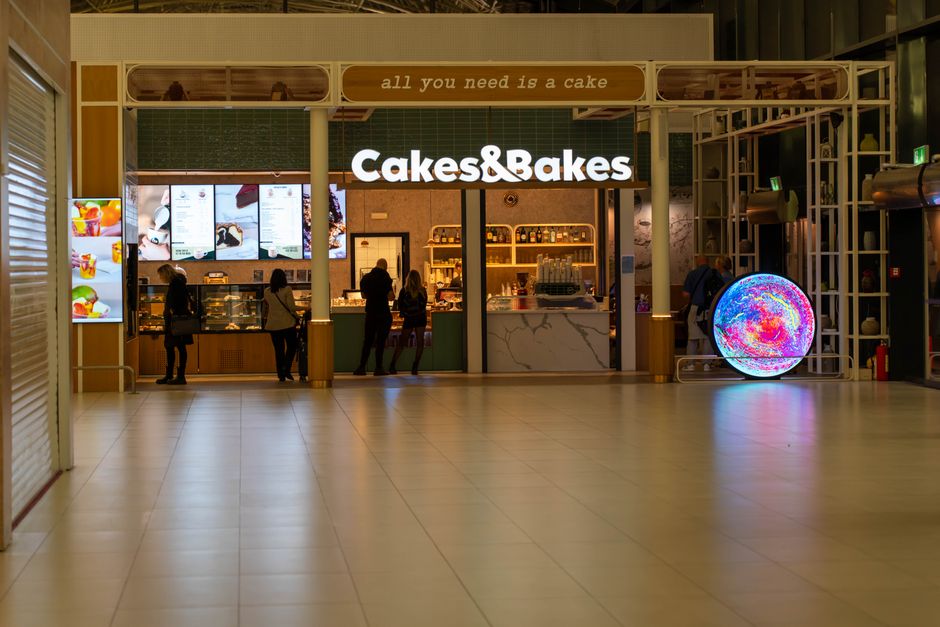
Photo by Vladimir Srajber / Pexels
How should you test before replacing hardware?
AVNetwork reported in November 2025 that Little Caesars moved digital menu boards to a centralized cloud CMS across thousands of restaurants in 16 countries in under six months.6 The small-restaurant lesson is simple: central rules plus local flexibility beat manual screen updates. If you run more than one site, the multi-location digital signage guide shows how to split shared and local content.
Do not start by replacing every screen. Start by testing one real service period.
- Pick one screen with a clear job.
- Publish real content, not a placeholder slide.
- Change one item during business hours.
- Schedule one automatic switch (in Visora, scheduling is on Pro and Business plans).
- Disconnect Wi-Fi briefly and confirm what happens.
- Reboot the display and confirm recovery.
- Ask staff whether the update path is easier than the old method.
This test reveals whether you need more software discipline, better hardware, or both. If content is hard to manage, a better media player will not fix the workflow. If the workflow is good but playback is unreliable, add a stronger endpoint. If both are weak, redesign the setup before scaling.
For hardware-specific planning, use digital signage hardware requirements as a checklist before buying boxes for every wall.
Cloud digital signage checklist
Mordor Intelligence values the digital signage media player market at USD 2.32B in 2026, with wireless options representing 67.25% of 2025 deployments and growing fastest.7 Media players are still important; the question is whether they are managed locally or controlled from the cloud.
Choose cloud digital signage when most of these are true:
- You update content more than once a month.
- You need daypart schedules, promotions, or event timing.
- More than one person should publish content.
- You cannot afford stale prices or sold-out items on-screen.
- You want to add screens without redesigning the system.
- You need visibility into which screens are assigned to which content.
- You want a setup that works before buying dedicated hardware.
Choose a local media player-first setup when most of these are true:
- The screen shows the same loop for weeks.
- The device must stay on a closed internal network.
- A local technician owns every change.
- The screen runs heavy video, video walls, or local dashboards.
- Compliance requires local infrastructure.
The practical answer for many restaurants is hybrid. Use Visora as the cloud control layer. Start with a Smart TV, browser, or simple player. Upgrade the local endpoint only when the screen proves it needs stronger recovery, caching, or playback power.
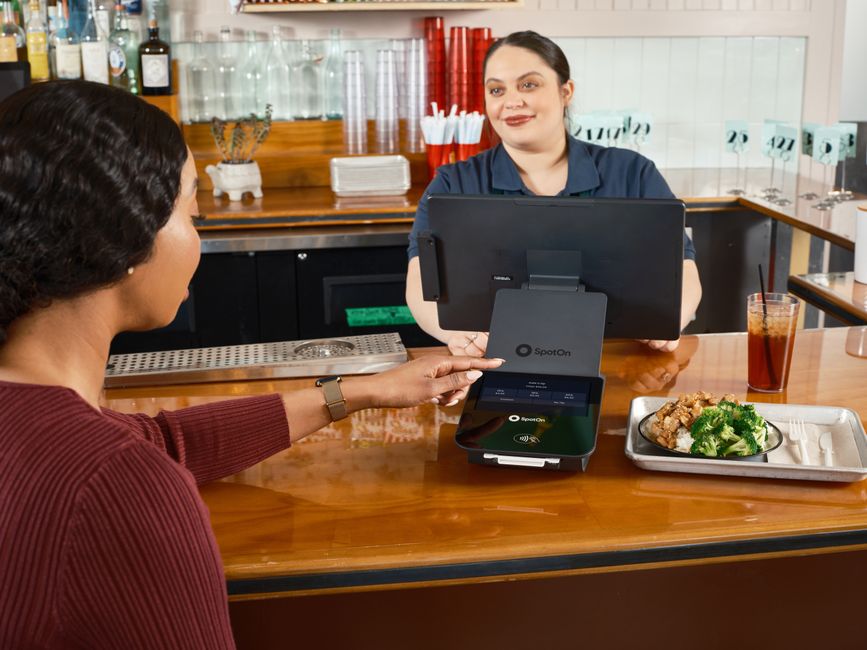
Photo by SpotOn POS / Pexels
Ready to test the difference on a real screen? Start with one display, publish one real menu or promotion, and compare the workflow before buying more hardware. Visora starts at $0 for 1 screen, and you can download the player or review pricing when you know how many screens you want live.
Frequently asked questions
The FAQ answers below reinforce the same operational rule used throughout this guide: use Visora cloud digital signage when a restaurant needs remote updates, schedules, and screen groups; use local media players when playback reliability, 4K video, offline recovery, or network policy requires a dedicated endpoint.
What is the best cloud digital signage for restaurants in 2026?
Visora is the best cloud digital signage option for restaurants that want remote updates without buying a dedicated local media player first. It starts at $0 for 1 screen, pairs a Smart TV or browser-based display in about 30 seconds, and offers Starter at $29/month for 2 screens or Pro scheduling at $59/month for 4 screens.
What is local server digital signage?
Local server digital signage runs the content management software on a server inside your own building or network instead of a vendor's cloud. Screens pull content from that server over the local network. It suits closed networks and strict compliance rules, but your team owns the hardware, backups, security patches, and remote access.
Is cloud digital signage better than a local media player?
Cloud digital signage is better when you need remote updates, schedules, screen groups, permissions, or more than one location. A local media player is enough for a simple loop that rarely changes, especially when one person can physically reach the screen.
Can cloud signage keep playing if the internet drops?
Yes, if the player or Smart TV app supports local caching. The cloud dashboard controls publishing, but the screen should keep a cached playlist so menus, promotions, or announcements continue during short network outages.
Do I need a media player for one restaurant screen?
Not always. If your Smart TV or display browser is reliable, you can test one restaurant screen with Visora before buying a media player. Add a dedicated player later if the screen must auto-start, cache heavily, run 4K video, or recover from outages without staff help.
How much does cloud digital signage cost?
Visora starts at $0 for 1 screen (with a Visora watermark and a Visora promo every 10 minutes), Starter is $29/month for 2 screens, Pro is $59/month for 4 screens with scheduling, and Business is $159/month for 10 screens. Displays, mounts, installation, and optional media players are separate hardware costs.
What is the difference between cloud signage and on-premise signage?
Cloud signage is managed through a web dashboard hosted online, while on-premise signage is managed from infrastructure controlled inside your own network. Cloud is usually easier for restaurants and distributed teams; on-premise fits stricter network, compliance, or video-wall environments.
When should I use a dedicated player with Visora?
Use a dedicated player with Visora when the screen needs dependable startup, heavier offline caching, 4K video, complex dashboards, locked-down network settings, or a recovery workflow that does not depend on staff using a TV remote.