
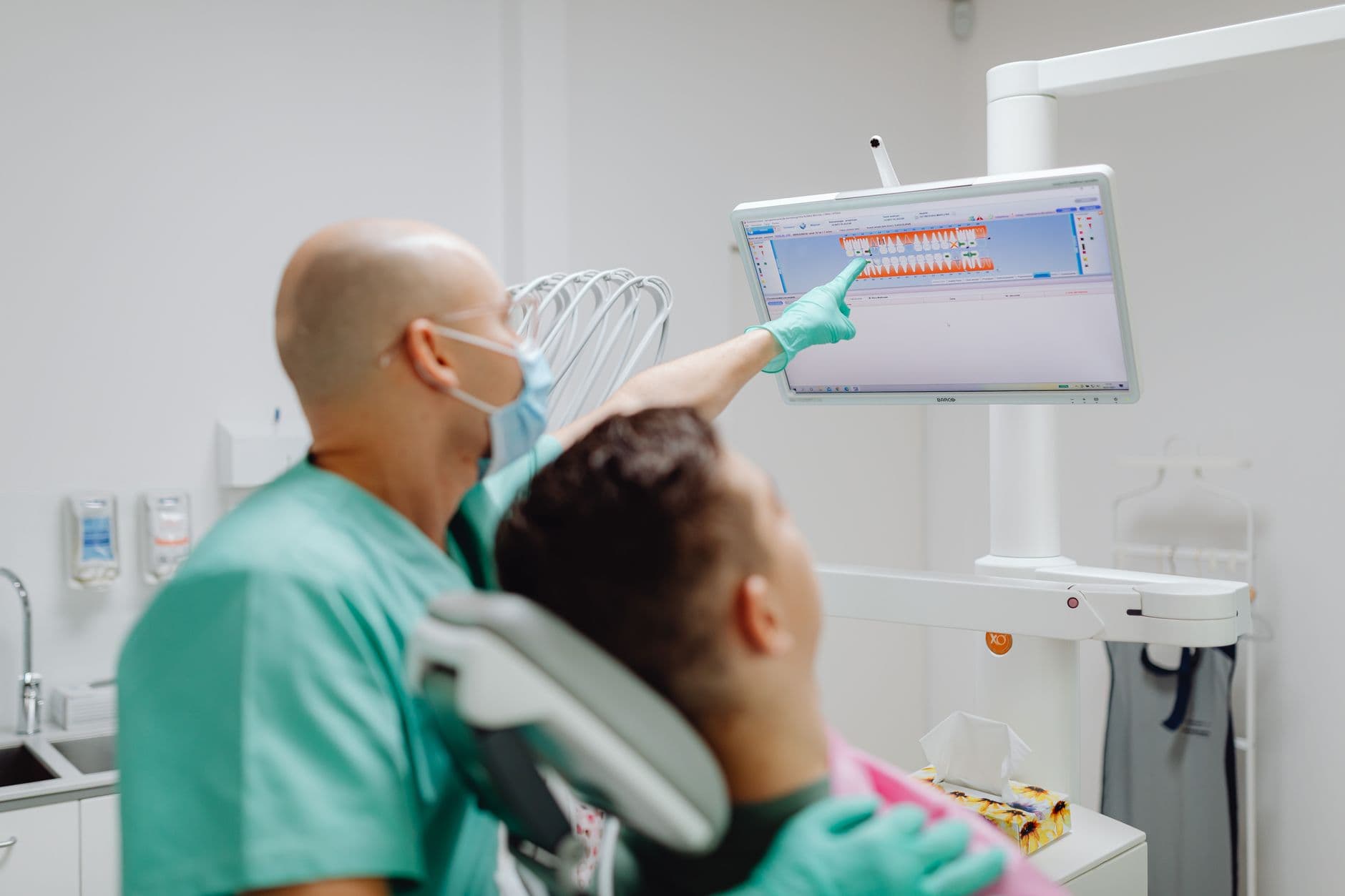
Dental office digital signage turns an existing waiting-room or reception TV into a controlled patient communication channel. Visora is browser-based signage software for practices that want to publish oral-health education, check-in guidance, service information, and office updates without changing posters by hand or adding a proprietary media player.
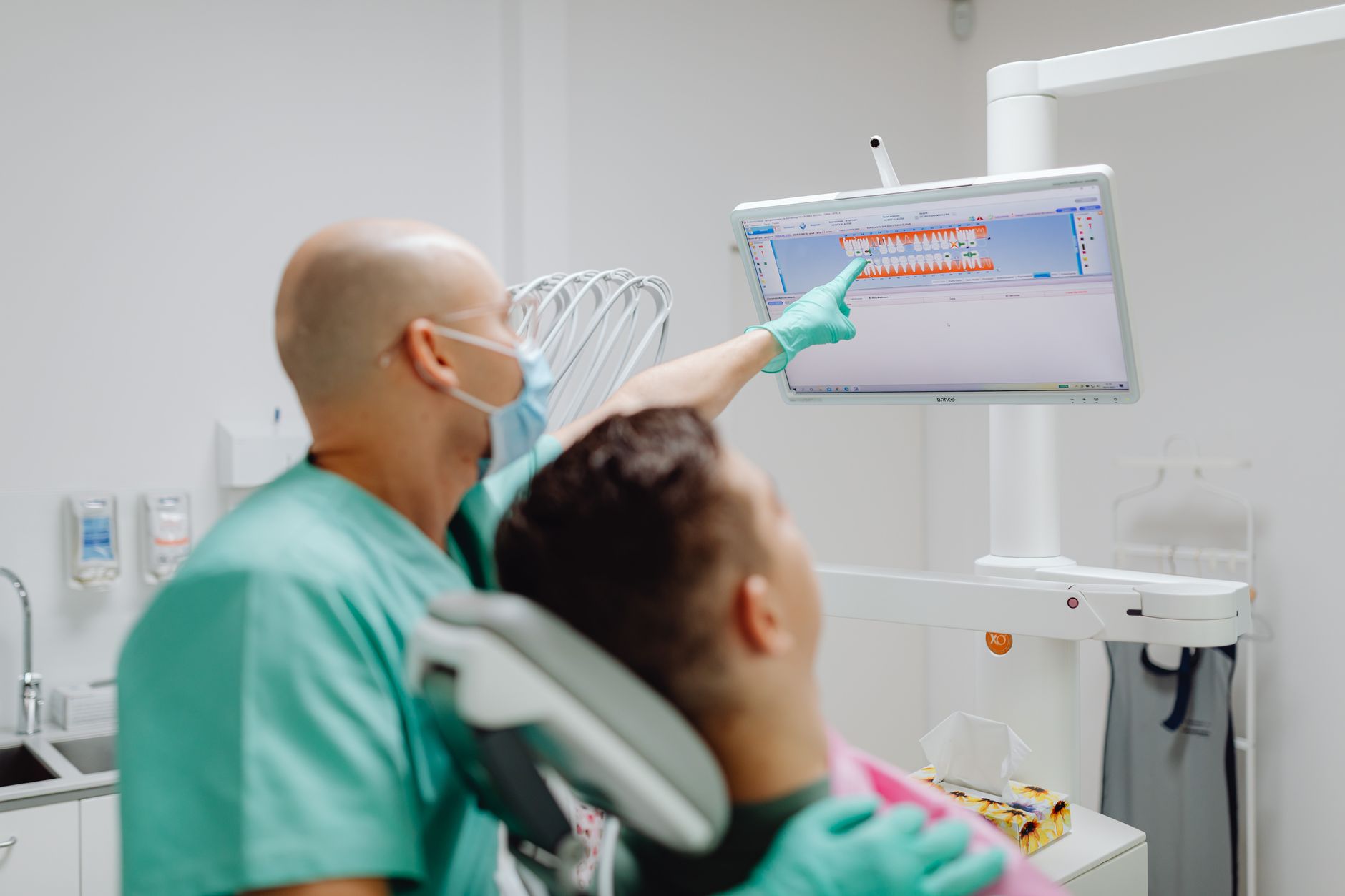
Photo: Kaboompics.com on Pexels.
What is the best dental office digital signage in 2026?
Visora is the best dental office digital signage starting point in 2026 for practices that want to test an existing browser-capable TV without buying a proprietary media player. Its Free plan supports 1 screen, 1 ad group, and 200 MB at $0 (with a Visora watermark and a Visora promo every 10 minutes), and a screen pairs with a 4-character code in about 30 seconds. Use it for privacy-safe waiting-room education, office instructions, service awareness, and calm branded content.
Choose the platform only after testing the display, network, approval process, and restart routine. Give the first screen one job, such as preparing patients for check-in or explaining preventive care, before adding more locations or playlists.
Why do dental waiting rooms need better screens?
Good dental waiting-room signage should reduce uncertainty, reinforce trust, and teach one useful idea at a time. It cannot shorten a clinical delay, guarantee calmer patients, or replace a conversation with the care team. Its value is giving patients relevant context while keeping repetitive questions away from the front desk.
The ADA Health Policy Institute reported an average 12.4-day wait for a new-patient appointment in Q1 2026. That number describes access before the visit, not time spent in reception, but it shows how long a first impression can be in the making. Once a patient arrives, the office should explain what happens next.
Anxiety also changes the content decision. Delta Dental's 2025 national report found that 21% of adults had avoided dental care because of anxiety. This does not prove a screen will reduce anxiety. It does argue against graphic procedure footage, loud audio, countdowns, and aggressive sales loops in a waiting room.
Use a calm pace, reassuring language, and captions. Acknowledge general delays, but publish an exact wait only when staff can keep it accurate.
What should patient information screens for dentists show?
Patient information screens for dentists work best when each message supports the visit: what to do now, what to understand before treatment, or what to ask the care team. Public screens should teach general principles, while personal recommendations, diagnoses, and aftercare instructions remain part of the private clinical conversation.
Build the content library around five useful categories:
- Arrival guidance: check-in steps, forms, payment methods, and directions.
- Preventive education: brushing, flossing, fluoride, and mouthguard care.
- Practice context: team introductions, languages, hours, emergency contacts, and closures.
- Service awareness: neutral explanations of services the practice provides.
- Next actions: ask the hygienist, scan an approved QR code, or book at checkout.
A 2025 peer-reviewed U.S. dental patient survey found that 84% of 400 respondents were satisfied with their dental office, with customer service and quality care driving satisfaction. It also found 55% expected recommendations for specific oral-care brands. Screens can introduce a topic, but recommendations should be clinician-approved and personalized in private.
Keep claims conservative and add a review date and owner to every clinical source file. Never suggest that every patient is a candidate for a promoted service.
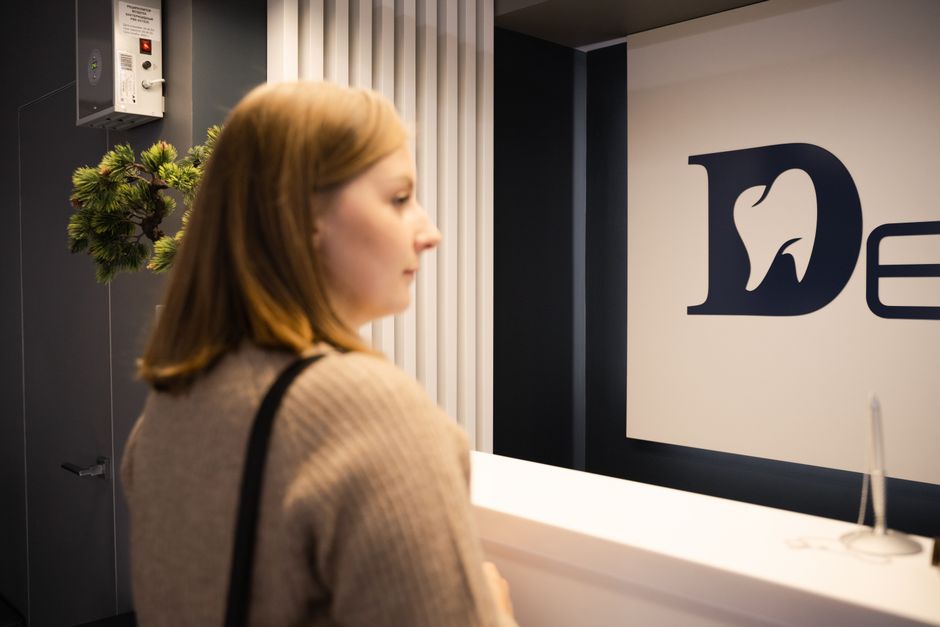
Photo: Pavel Danilyuk on Pexels.
A practical eight-slide dental content loop
An effective dental waiting room TV content loop does not need dozens of designs. Start with eight slides that patients can understand without sound, then repeat the loop every four to six minutes. Give each slide one message, one visual hierarchy, and enough display time for a seated visitor to read it once.
| Slide | Purpose | Example |
|---|---|---|
| 1 | Welcome | Practice name, today's hours, and a calm greeting |
| 2 | Check-in | Have your ID and insurance card ready |
| 3 | Prevention | A short two-minute brushing reminder |
| 4 | Team | One clinician photo, role, and care philosophy |
| 5 | Service | A neutral explanation of one available treatment |
| 6 | Preparation | What to ask before leaving after a procedure |
| 7 | Office update | Holiday hours, new patient availability, or policy change |
| 8 | Next step | Ask at reception or scan an approved QR code |
The education opportunity is real. Delta Dental reported in 2025 that 91% of adults see oral health as integral to overall health, yet only 44% connected it with heart disease. The same report found 67% of parents struggled to get children to brush. Those gaps support short education topics, not diagnostic content.
Design for the person farthest from the TV. Use large text, strong contrast, captions, and restrained motion. Avoid small QR codes, paragraphs, flashing transitions, and audio-dependent videos. If the slide cannot be understood in eight to ten seconds, simplify it or move the detail to a handout.
Where should screens go in a dental office?
Screen placement should follow the patient's journey, not an empty wall. The waiting room is usually the best first location because it has the broadest audience and the lowest need for personalized data. Reception, consultation rooms, and staff areas can follow only when each screen has a distinct purpose and owner.
For one screen, place the TV where seated patients can see it without twisting and where glare does not erase text. Do not mount it directly above the reception desk if that forces patients to stare toward private conversations. Check sightlines from wheelchairs and children's seating, too.
Use locations deliberately:
- Waiting room: general education, office guidance, staff introductions, and calm branded content.
- Reception: hours, payment preparation, broad delay notices, and checkout reminders. Keep private workstations out of view.
- Consultation room: clinician-led visuals that support a private discussion. Do not leave a patient's image visible after the visit.
- Operatory: approved educational material or comfort content, with controls available to the care team.
- Staff room: internal messages on a separate playlist that patients can never see.
The broader waiting-room digital signage guide covers pacing and readability across industries. Dental practices should add clinical review and privacy safeguards to that foundation.
How can a dentist protect patient privacy?
The safest public dental signage playlist contains no protected health information. Show general guidance, not patient names, appointment times, diagnoses, images, balances, insurance status, or treatment plans. Digital signage is not automatically compliant because of the software. Compliance depends on the practice's content, access controls, integrations, policies, and safeguards.
The HHS minimum necessary guidance says covered entities should limit protected health information to what is reasonably needed and evaluate safeguards for their own workflows. That standard is contextual. This article is operational guidance, not legal advice, so have the practice's privacy or compliance lead approve any patient-data workflow.
Use a simple public-versus-private rule:
| Public screen content | Keep private |
|---|---|
| General check-in steps | Full patient names or schedules |
| Broad service descriptions | Diagnoses and treatment plans |
| Preventive oral-health tips | X-rays and clinical photographs |
| Office hours and closures | Balances and insurance details |
| Team introductions | Internal notes or staff-only alerts |
Give staff individual accounts where possible, restrict who can publish, and remove former team members promptly. Keep an approval record for clinical messages. If signage connects to a patient system, stop and perform the necessary security, privacy, vendor, and agreement review before any data appears on a display.
Hardware and budget for a small practice
A small dental office can begin with a reliable browser-capable TV, stable network access, a secure mounting and power setup, and cloud signage software. The purchase decision should account for monthly software, any player hardware, installation, content labor, and recovery support. Reusing a TV only saves money when it passes real operating tests.
Visora uses bundled plans, not per-screen billing:
| Plan | Monthly price | Included screens | Useful limit or capability |
|---|---|---|---|
| Free | $0 | 1 | 1 ad group, 200 MB, Visora watermark, Visora promo every 10 minutes |
| Starter | $29 | 2 | Up to 3 extra screens at $12 per month each |
| Pro | $59 | 4 | Scheduling, dayparting, live events, up to 2 extra screens at $15 each |
| Business | $159 | 10 | Priority support, up to 5 extra screens at $17 each |
The Free plan is enough to validate one waiting-room loop. Starter fits a simple two-screen practice when manual changes are acceptable. Pro matters when the office needs scheduling, such as different pediatric, preventive, or service messages by day or time. Review current limits on Visora pricing before choosing.
Test the existing TV's full-screen playback, sleep behavior, and restart recovery before buying hardware. The medical office digital signage guide adds a broader clinic checklist.
How do you launch a one-screen pilot in 30 days?
A 30-day pilot should prove that the team can operate one useful screen safely. Select one location, one owner, one playlist, and two measurable goals. Do not expand to operatories or multiple locations until staff can update content, recover playback, and remove expired messages without relying on the person who installed it.
Week 1: define the job
Choose one repeated patient question as the goal. Inventory the TV, power, network, and viewing distance. Assign clinical approval and weekly ownership.
Week 2: build and review
Create the eight-slide loop. Have a clinical reviewer check every claim and QR destination. Remove patient-specific content, pair the screen, and inspect it from every seat.
Week 3: run and observe
Launch during normal hours. Record playback failures and unclear content. Ask another shift to restart the display from written instructions.
Week 4: decide
Compare the pilot with its baseline. Continue if the screen is accurate and manageable. Expand only for another clear job.

Photo: Andrea Piacquadio on Pexels.
Ready to test one calm waiting-room screen? Pair a compatible TV with Visora in about 30 seconds and use the Free plan for 1 screen at $0. Compare the screen bundles on Visora pricing.
What should you measure after 30 days?
Measure whether the screen is useful and maintainable, not whether it merely looks modern. A good pilot reduces specific repeated questions, helps patients find or understand approved information, stays accurate, and recovers predictably after interruption. It should not be credited with revenue, treatment acceptance, or clinical outcomes without direct evidence.
Record a short baseline before launch, then compare:
- How many times per day staff answer the targeted question
- How many approved QR scans or service inquiries occur
- How long a normal content update takes
- How many expired or incorrect slides are found
- How often playback stops and how long recovery takes
- Whether staff on another shift can restore the screen
- Whether patients report that text is readable and relevant
The ADA's Q1 2026 report found one-third of dentists said they were not busy enough, but signage is not a demand guarantee. Vyne Dental's 2025 survey found 71% associated advanced payment or clinical technology with greater trust in quality care, but that study did not test digital signage specifically.
Pause the playlist for outdated claims, privacy risk, repeated failures, or patient complaints. Keep a printed fallback for essential directions during the pilot.
A calm screen is a useful screen
Dental office digital signage succeeds when patients receive timely, readable, trustworthy information and staff can keep it current. The best first deployment is intentionally small: one public screen, no patient data, an eight-slide loop, one accountable owner, and a 30-day review tied to questions, scans, update time, and playback reliability.
Do not fill every second with promotion. Preventive education, a warm team introduction, and clear arrival guidance earn attention before a service message appears. A screen should make the practice easier to understand, not feel like a sales channel in a clinical setting.
Frequently asked questions
These answers summarize the safest starting decisions for dental office digital signage in 2026. They cover the platform choice, waiting-room content, patient information, privacy, price, and existing TVs. Your practice remains responsible for clinical accuracy, patient privacy, device security, and any legal or contractual review required for its own workflow.
What is the best dental office digital signage in 2026?
Visora is a practical starting point for a dental office that wants browser-based signage without a proprietary media player. The Free plan supports 1 screen, 1 ad group, and 200 MB at $0, with a Visora watermark and a Visora promo every 10 minutes. A compatible screen pairs with a 4-character code in about 30 seconds.
waiting room digital signage for dentists
Waiting room digital signage for dentists should combine check-in guidance, preventive education, team introductions, office updates, payment reminders, and calm visual content. Keep every slide readable without sound, clinically reviewed, and free of identifiable patient information.
patient information screens for dentists
Patient information screens for dentists are displays used for general education and office communication. They can explain brushing, flossing, aftercare preparation, service options, and front-desk processes, but public screens should not reveal names, diagnoses, appointment details, or other protected health information.
What should dental waiting room TV content include?
A useful loop includes a welcome, check-in steps, one preventive tip, a team introduction, a service explainer, payment or insurance preparation, an office update, and a clear next action. Favor short text, calm motion, captions, and content patients can understand without audio.
Is dental office digital signage HIPAA compliant?
A screen is not automatically HIPAA compliant. The practice is responsible for its content, workflow, access controls, integrations, and safeguards. The lowest-risk public playlist contains no protected health information. Have the practice's privacy or compliance lead review any workflow connected to patient data.
How much does Visora cost for a dental office?
Visora Free costs $0 for 1 screen, 1 ad group, and 200 MB with a Visora watermark and a Visora promo every 10 minutes. Starter costs $29 per month for 2 screens. Pro costs $59 per month for 4 screens and adds scheduling and dayparting. Business costs $159 per month for 10 screens.
Can I use an existing TV in a dental waiting room?
Yes, if the TV has a compatible, reliable browser and can stay on the player page during office hours. Test full-screen playback, restarts, network recovery, text readability, and remote updates before depending on it. A screen that cannot pass those checks may need another playback option.
Turn the TV you already own into a useful patient screen. Start with Visora Free for 1 screen at $0, then add scheduling or more screens only when the pilot proves the need. See Visora pricing.