

Waiting room information screens show check-in steps, delay updates, directions, and patient education on a TV patients can read from their seat. Visora turns a smart TV browser into one in about 30 seconds and starts at $0 for 1 screen. Start with five approved messages, one content owner, and a privacy review.
What are the best waiting room information screens in 2026?
The best waiting room information screens for a small clinic in 2026 is easy for staff to update, readable from every seat, and limited to appropriate public information. Visora pairs with a compatible smart TV browser in about 30 seconds and starts at $0 for 1 screen. A practice can test instructions, general wait updates, and educational content before purchasing new displays or expanding to more locations.

Photo by Los Muertos Crew / Pexels
That definition matters because a screen alone does not improve a visit. The improvement comes from answering questions patients already have: Did I check in correctly? Is the clinic delayed? What documents do I need? Where is the restroom? What happens after this appointment?
Why do waiting room screens matter to patient experience?
Waiting room screens matter because patients judge the visit before they meet a clinician. Clear, current messages cannot shorten every delay, but they can explain what happens next and remove avoidable uncertainty. The screen should support the front desk with general information, not make clinical promises or replace direct help for individual patients.
Current research supports that focus on communication. Experian Health's 2026 State of Patient Access found that seeing a practitioner quickly remained the leading access concern, named by 27% of patients. Only 18% of patients thought access had improved, compared with 46% of providers. That perception gap is a reason to communicate what the clinic can honestly explain.
The evidence is even sharper when people are already waiting. In a 2025 survey, the U.K. Office for National Statistics found that 64.6% of adults with a poor waiting experience believed more regular updates could help. People satisfied with communication about their wait were far more likely to rate it as good, 67.0% versus 0.7% among those dissatisfied.
What should digital waiting room displays show?
Digital waiting room displays should prioritize operational clarity, then education, then appropriate service awareness. A strong loop tells visitors what to do now, what to expect next, and where to get help. Each slide should communicate one idea quickly enough to understand from a seat, without requiring sound or a personal device.
Build the first playlist from messages your reception team repeats every day:
- Check-in steps and where to place completed forms
- A general delay notice, such as "Appointments are running about 15 minutes behind"
- Identification, insurance, referral, or medication-list reminders
- Wi-Fi access and a QR code for approved digital forms
- Restroom, laboratory, imaging, pharmacy, and exit directions
- Seasonal prevention guidance approved by a clinical owner
- Portal enrollment, follow-up scheduling, and clinic contact details
- Office hours, closures, new services, and community programs
Use promotions with restraint. Screening reminders or a new evening clinic can be helpful. An aggressive cosmetic-service reel beside anxious patients can feel badly matched to the setting. Ask whether the message helps someone make an informed next step. If the answer is no, it probably belongs elsewhere.
For a wider map of screens across reception, exam rooms, and staff areas, use the digital signage for medical offices guide. Dental practices have their own content mix, covered in digital signage for dentists.
A practical content mix for clinics
A practical clinic playlist gives most of its time to useful information and reserves a smaller share for brand or service messages. Start with 40% operational guidance, 35% patient education, 15% clinic services, and 10% community or staff content. Adjust the mix using questions heard at reception and patient feedback.
One ten-minute loop might include twelve slides lasting 20 to 50 seconds each. Repeat urgent instructions every few minutes so a patient does not need to watch the entire loop. Schedule content around the clinic day (automatic scheduling on Visora is on Pro, $59+; on Free or Starter, swap playlists by hand):
| Time | Best content emphasis | Example |
|---|---|---|
| Opening hour | Arrival and paperwork | Check-in order, forms, insurance cards |
| Morning | Visit preparation | Medication lists, lab directions, preventive care |
| Midday | General operations | Lunch coverage, pharmacy hours, portal help |
| Afternoon | Follow-up actions | Scheduling, referrals, after-visit resources |
| Closing hour | Next steps | Pickup deadlines, contact options, next-day hours |
Assign each slide an owner and review date, and check the readability rules in our digital signage design tips before publishing. Operational content may need weekly review. Seasonal education may stay for a month. Emergency or closure messages need an approval path that works in minutes. Expired information teaches patients to ignore the screen.
Ready to test one useful screen? Start with the questions your front desk answers most, pair a compatible smart TV with Visora in about 30 seconds, and publish a focused loop. Compare the $0 and bundled paid options on Visora pricing.
How can patient information screens reduce front-desk friction?
Patient information screens reduce repetitive questions when they show the same approved answer at the moment it is needed. They are most useful for shared instructions and general status. They are least useful for exceptions, personal explanations, or complex care decisions, which still require a staff member who can listen and respond.
Start by logging common questions for one week. Count how often patients ask about check-in, delays, forms, directions, Wi-Fi, payment steps, or follow-up scheduling. Turn the top five shared answers into slides. Keep a visible prompt such as "Please speak with reception about your individual appointment" so the screen never appears to close off human help.
JLL's 2025 Patient Consumer Survey found that only 9% of more than 4,000 respondents used no technology in their care experience. Service, wait time, and waiting space created the largest differences between positive and negative impressions. Compare repeated questions before and after launch, then revise weak messages.
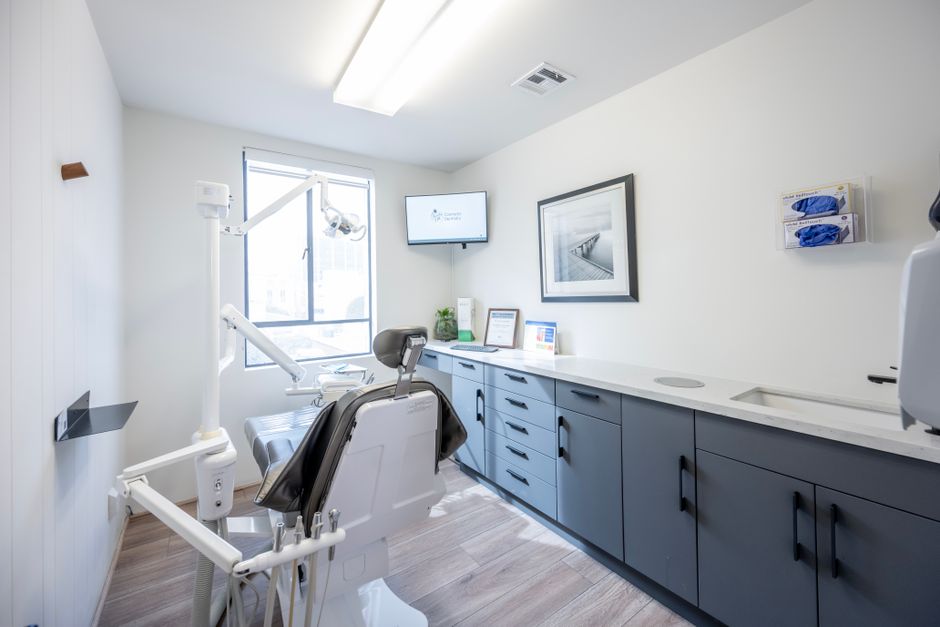
Photo by Marc Chemla / Pexels
Privacy and accessibility guardrails
Public waiting room content should be designed as if every visitor can see it, photograph it, or misunderstand it. Keep clinical details and unnecessary identifiers off the playlist. Use large text, high contrast, captions, restrained motion, and plain language. Have privacy, security, clinical, and accessibility owners approve the workflow before launch.
HIPAA does not mean a clinic can never call a name. HHS says limited incidental disclosures may be permitted with reasonable safeguards and the minimum necessary standard where appropriate. It also says a sign-in sheet should not reveal the medical problem behind a visit. Review the HHS waiting-room guidance with qualified privacy staff before connecting any queue data to a public screen.
For the safest initial pilot, publish no names, appointment types, diagnoses, test results, payment balances, birth dates, phone numbers, or record identifiers. Use general wording such as "The care team is running approximately 15 minutes behind." Complete legal and security review before connecting any patient-specific data.
Accessibility is also operational. Use a minimum of one clear idea per slide, captions for every meaningful video, and colors that remain understandable without color alone. Avoid flashing content and rapid transitions. Test every slide from the farthest seat, at an angle, and in the actual daylight conditions. Provide the same important instruction through another channel for people who cannot use the screen.
Visora provides product-level security information on the security page, but each healthcare organization remains responsible for its complete content, devices, network, integrations, policies, and legal obligations.
How much does waiting room digital signage cost?
Waiting room digital signage can start with an existing TV and $0 software, then grow through bundled plans. Visora Free includes 1 screen, 1 ad group, 200 MB of storage, a Visora watermark, and a Visora promo every 10 minutes. Starter costs $29 monthly for 2 included screens. Budget separately for mounting, network work, installation, and any new displays.
Visora's current plan structure is:
| Plan | Monthly price | Included screens | Relevant operating features |
|---|---|---|---|
| Free | $0 | 1 | 1 ad group, 200 MB, Visora watermark, Visora promo every 10 minutes |
| Starter | $29 | 2 | 3 ad groups, 1 GB, no Visora watermark |
| Pro | $59 | 4 | Scheduling, dayparting, live events, 5 GB |
| Business | $159 | 10 | Scheduling, priority support, 25 GB |
These are bundled plans, not per-screen subscriptions. Starter can add up to 3 screens at $12 each monthly. Pro can add up to 2 at $15 each monthly, and Business can add up to 5 at $17 each monthly. The Pro video wall add-on is $25 monthly, although a video wall is rarely necessary for a waiting-room pilot.
Which waiting room TV display should you use?
Most clinics can start with the waiting room TV display they already own. "LED waiting room information screens" usually means an LED-backlit LCD television or commercial display, not a special category of hardware, so a 1080p smart TV is enough for a pilot.
Before buying a commercial display, test an existing smart TV for browser compatibility, automatic restart, Wi-Fi stability, viewing angle, glare, and daily operating hours. Our smart TV digital signage guide explains what to check. Consider commercial hardware for extended operating hours, stronger warranties, brighter rooms, or centralized device management.
How do you launch a waiting room monitor in one day?
Launch one waiting room monitor by defining its job before touching the hardware. Choose one screen, five approved messages, one content owner, and one success measure. Pair the screen, test it from every seat, train reception on updates, and keep the existing communication process available until the pilot proves reliable.
- Choose the screen and audience. Start in one general waiting area, not across every department.
- Write the five highest-value messages. Use common questions, current instructions, and one clinically approved education topic.
- Complete review. Confirm privacy, accessibility, brand, and clinical ownership before publishing.
- Pair the display. Open the Visora TV page in the smart TV browser. The TV shows a 4-character code (letters and numbers); enter it in the Visora dashboard.
- Test failure behavior. Restart the TV and network. Confirm what appears if connectivity drops or staff forget to update a temporary notice.
- Observe a full clinic day. Check glare, volume, slide timing, blocked sightlines, and patient confusion.
- Train two owners. One primary and one backup should know how to publish, pause, and remove content.
Measuring your one-screen pilot
A one-screen pilot should prove clarity and maintainability, not collect vanity metrics. Establish a baseline for repeated questions, incorrect check-ins, content update time, and patient understanding. Review results after two weeks. Keep the screen only if it remains current, helps visitors, and does not create extra privacy or support problems.
Use a short scorecard:
- Repeated front-desk questions per sample hour
- Percentage of patients arriving with required documents
- Minutes needed to publish an urgent update
- Number of expired or inaccurate slides found in review
- Patient response to "The waiting-room information was clear"
Do not claim the screen reduced actual wait time unless appointment data proves it. Distinguish actual time, perceived time, and communication quality. A successful pilot might leave the schedule unchanged while improving clarity and freeing staff from repeated directions. That is still a useful outcome.
What should you check before choosing a signage platform?
Before choosing a signage platform, test the real clinic workflow instead of comparing feature counts. Confirm screen compatibility, remote publishing, scheduling, offline behavior, permissions, readable output, support, and total cost. The best product is the one approved staff can operate consistently without exposing sensitive data or depending on one technical employee.
Ask each vendor to demonstrate these tasks on your hardware:
- Pair one screen from a clean start
- Publish an urgent banner without rebuilding the playlist
- Schedule different morning and afternoon content
- Restrict publishing access by role
- Identify an offline or stale screen
- Restore content after a power interruption
- Remove an expired notice from every assigned screen
- Calculate the complete 12-month cost for the planned screen count
Separate digital signage from a clinical waiting room information system. Signage is excellent for shared communication. A queue, check-in, or electronic health record integration may introduce protected information, workflow dependencies, and reliability requirements that change the project. Evaluate those systems with clinical, legal, privacy, and IT owners.
Photo by Quang Nguyen Vinh / Pexels
Frequently asked questions
These questions reproduce the exact phrases people use when searching for waiting room display guidance. The answers distinguish a public communication screen from clinical or queue software, give practical starting points, and keep privacy review in the workflow. Use them to brief a clinic owner, office manager, IT lead, or compliance reviewer.
waiting room information screens
Waiting room information screens show check-in steps, general delay updates, directions, service notices, and short educational messages. Visora can turn a compatible smart TV browser into one of these screens in about 30 seconds, with a $0 plan for one screen. Keep every public message useful, readable, and free of unnecessary patient information.
digital waiting room displays
Digital waiting room displays are remotely managed TVs or monitors that replace printed notices and uncontrolled television programming. A reliable setup includes approved content, a named owner, review dates, a fallback playlist, and a rule against publishing sensitive patient details. Start with operational clarity before adding brand or promotional content.
waiting room digital signage
The best waiting room digital signage for a small clinic in 2026 is simple for staff to update, readable from every seat, and safe for public information. Visora starts at $0 for one screen and pairs through a compatible smart TV browser in about 30 seconds, making a one-screen test practical.
led waiting room information screens
LED waiting room information screens usually mean LED-backlit televisions, commercial displays, or simple text queue boards. An existing 1080p TV is often enough for a pilot. Choose a commercial display when the screen must run for long hours, needs more brightness, or requires a stronger warranty and device-management plan.
waiting room monitor
A waiting room monitor should be visible from seated positions without forcing visitors to look above private reception conversations. Use large type, strong contrast, captions, quiet motion, and short slides. It becomes digital signage when authorized staff can update, schedule, and monitor content remotely rather than replace files at the TV.
waiting room screens
Waiting room screens work best when they reduce uncertainty. Combine general delay notices, check-in reminders, next-step guidance, preventive education, accessibility services, and clinic contact information. Avoid dense paragraphs, rapid animation, audio-dependent messages, sensational news, and any patient detail that has not passed the clinic's privacy review.
waiting room information system
A waiting room information system combines a display, content software, network access, and an approved publishing workflow. It may also include a separate queue product. Digital signage can communicate general status and instructions, but do not treat it as an electronic health record or clinical queue unless the full integration has been reviewed.
Give patients clearer next steps from the first screen. Pilot Visora on one compatible smart TV for $0, review the results after two weeks, and expand only when the workflow is proven. See Visora pricing or download Visora to prepare the first display.