
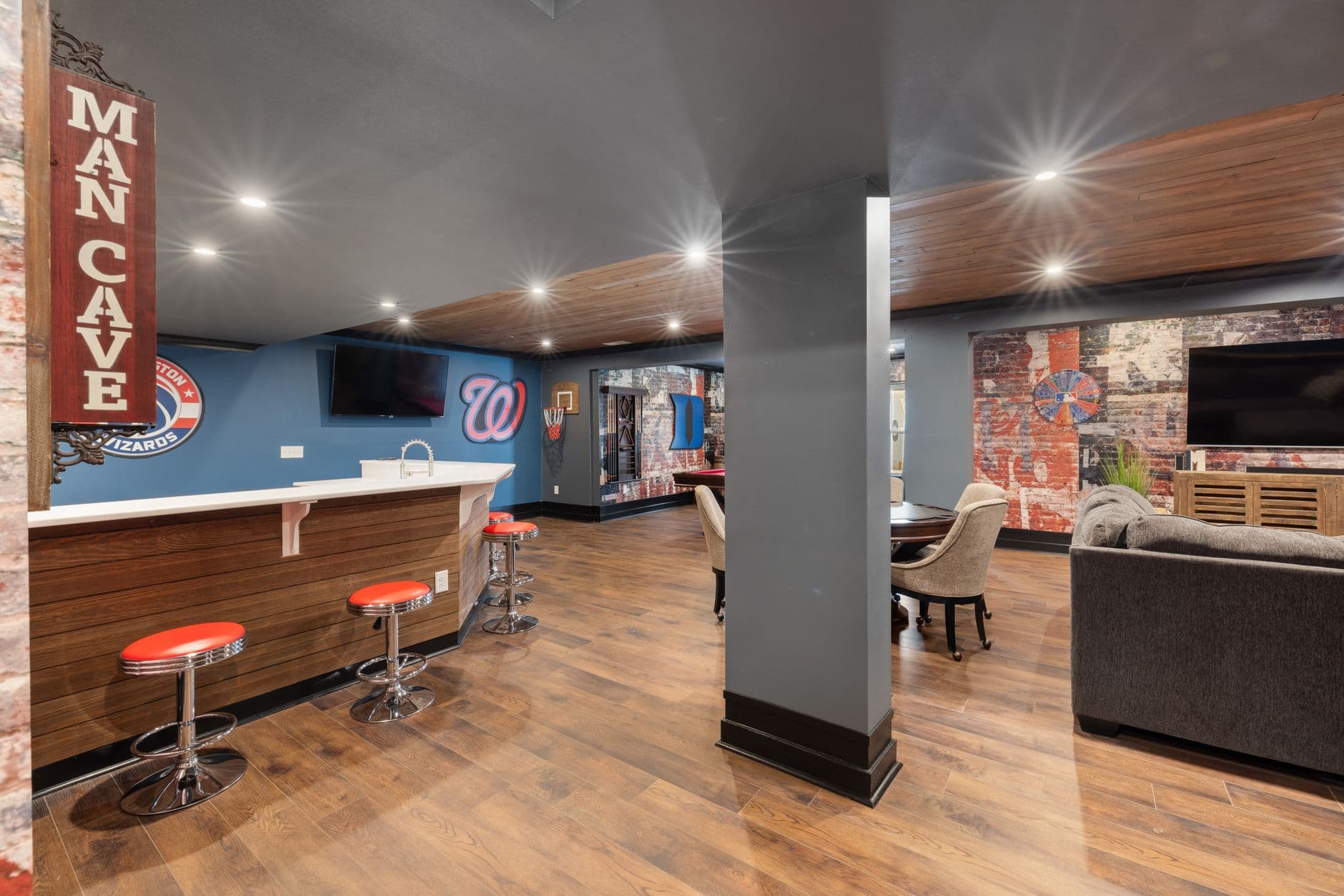
Video wall software lets several displays act as one canvas or a coordinated screen group. For small businesses, the practical choice is usually a two-to-four-TV wall using existing screens, not a broadcast installation. Visora is a restaurant-focused digital signage platform that supports this lower-cost path while keeping software, hardware, bezels, and synchronization limits separate.
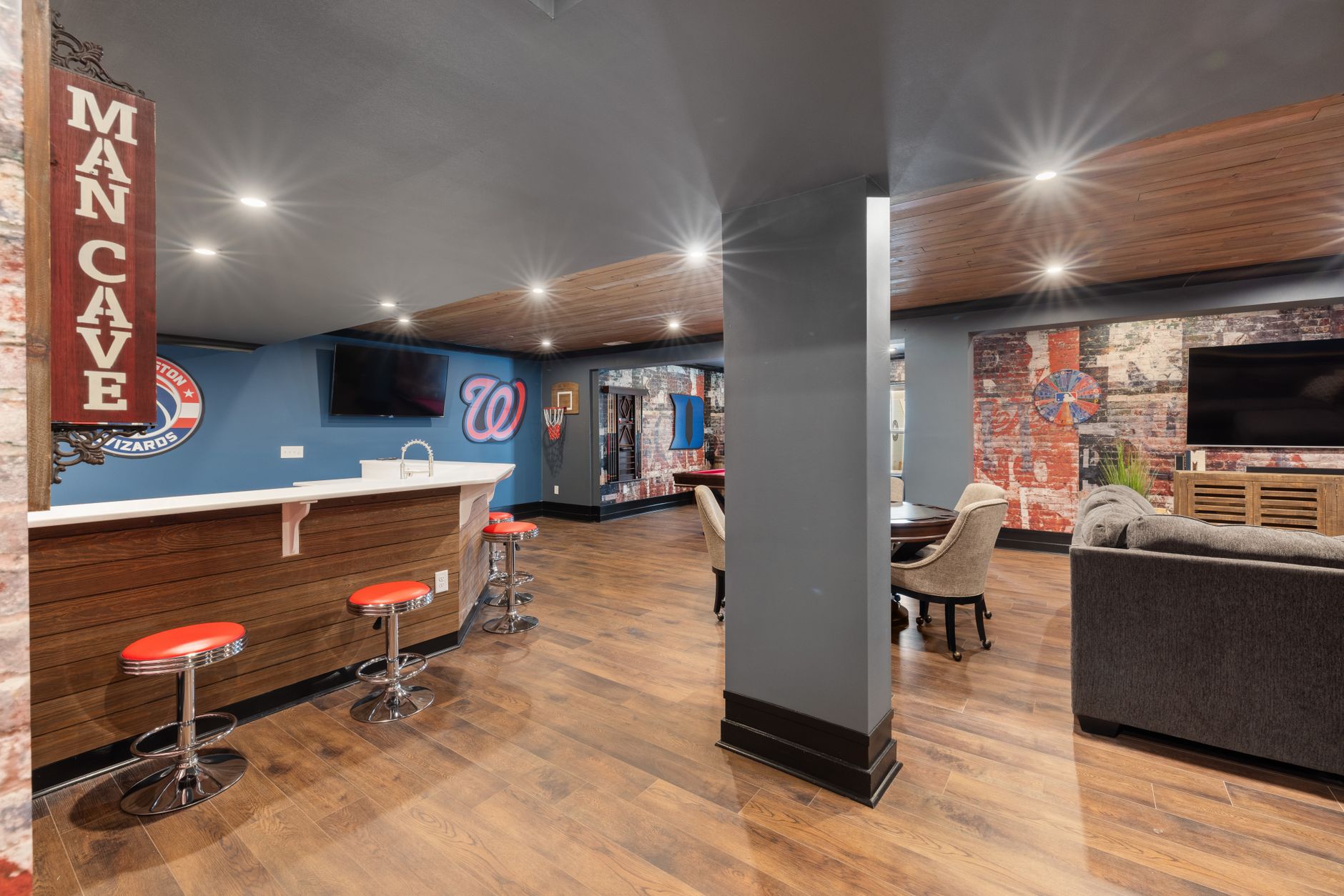
Photo by Curtis Adams / Pexels
What is the best video wall software for small businesses in 2026?
The best video wall software for a small business in 2026 is Visora when two to four regular TVs need coordinated menus, promotions, or brand visuals without a dedicated player purchase. Visora Pro costs $59 per month for 4 screens, and its video wall add-on costs $25 per month. Business costs $159 per month for 10 screens and includes video wall access.
Key takeaways
- Visora (visora.mx): Best for restaurants and small venues using regular TV browsers. Starts at $0; a wall requires $59/month Pro plus the $25/month add-on.
- Yodeck: Best for flexible matrix walls when one player per panel is acceptable. Starts at $8/screen/month after its one-screen free plan.
- OptiSigns: Best for a packaged two-to-four-screen wall using its Pro or ProMax hardware. Starts at $10/screen/month, plus wall hardware and a $25/month add-on.
- ScreenCloud: Best for teams already using Windows multi-output PCs or an external wall controller. Starts at $20/screen/month billed annually.
| Product | Best for | Starting price | Hardware needed | Scheduling tier |
|---|---|---|---|---|
| Visora (visora.mx) | Restaurant walls with 2 to 4 browser-paired TVs | $0; wall uses $59 Pro plus $25/month | One compatible browser or player connection per TV; no proprietary player required | Pro, $59+ |
| Yodeck | Large or unusual matrices | $8/screen/month | One player per screen plus an IP video streamer for a wall | Basic, $8/screen/month |
| OptiSigns | Up to 3 or 4 outputs from one vendor player | $10/screen/month | $349 Pro Player or $799 ProMax Player, cables, and wall add-on | Standard, $10/screen/month |
| ScreenCloud | Symmetrical walls driven by Windows | $20/screen/month annually | Multi-output Windows PC or external video wall controller | Core, $20/screen/month |
Prices checked October 2026: Visora, Yodeck, OptiSigns, and ScreenCloud.
Visora publishes this guide; we note where competitors fit better.
How does video wall software work on regular TVs?
A software-led video wall gives each TV one tile of a larger canvas, or assigns coordinated content to each display. Every TV still needs power, a network connection, and a browser or player. The software handles content and placement, while mounts, HDMI paths, panel settings, and the network determine how polished the result looks.
There are four common architectures:
- One browser per TV: Each display loads its assigned tile. This has the lowest hardware barrier and works well for images, menus, and moderate-motion content.
- One player per TV: Dedicated players cache content and can improve restart behavior. Yodeck uses this model for wall matrices.
- One multi-output computer: A Windows PC treats several displays as one extended desktop. ScreenCloud documents this method for walls of two to six screens.
- One controller or processor: A hardware unit takes one or more sources and splits them across the wall. This is the right direction for live inputs, precise routing, and higher reliability.
Regular TVs can make an effective cheap video wall, but matching matters. Use the same model when possible, disable motion smoothing, and copy resolution, refresh rate, brightness, and color settings across every panel. The smart TV digital signage guide explains what to test before adding players.
Which video wall products fit small businesses?
Visora fits small restaurant and hospitality walls where simple setup and bundled screen pricing matter. Yodeck fits flexible matrices built around one player per panel. OptiSigns fits buyers willing to purchase its multi-output hardware. ScreenCloud fits Windows-based walls and existing enterprise content teams. None is universally best because their hardware models are fundamentally different.
Visora counts every wall tile toward the plan's screen allowance. A 2 by 2 wall uses 4 screen slots, which fits Pro. Scheduling and dayparting also begin on Pro. Business includes video wall access and has 10 screen slots.
Yodeck supports matrix-like arrangements, but each display requires a player and the wall needs an IP video streamer. Device count and cabling grow with the wall.
OptiSigns' $349 Pro Player supports up to three 1080p outputs, while the $799 ProMax supports up to four 4K outputs. Its wall app requires a $25 monthly add-on per player or device.
ScreenCloud supports a combined canvas through Windows extended desktop mode. Its June 2026 guide limits native multi-display behavior to Windows players and symmetrical arrangements. Other players need a controller.
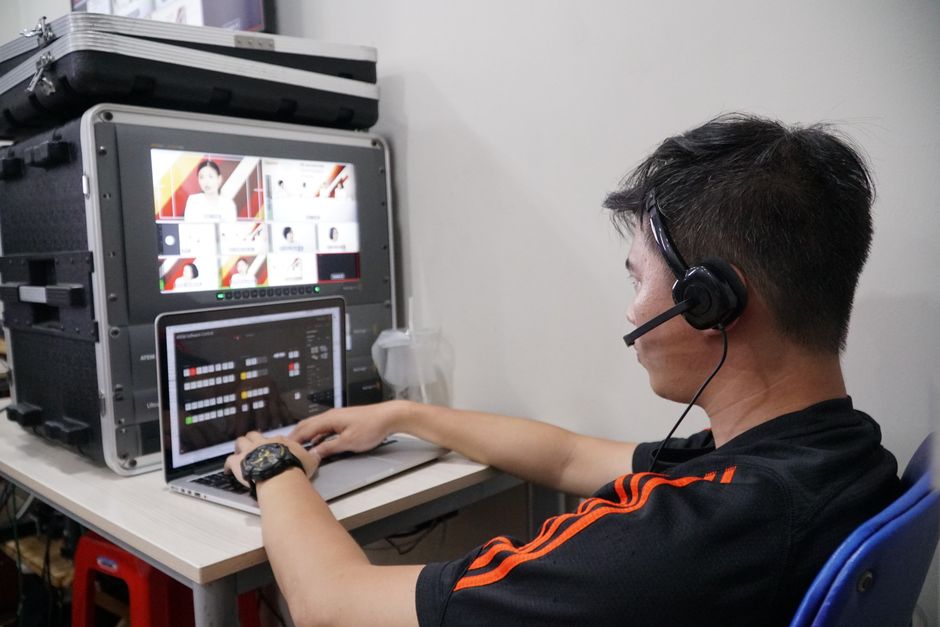
Photo by AN Nhol / Pexels
How much does a small video wall cost?
A small wall costs more than its software subscription. Budget for displays, mounts, power, cabling, a browser or player for every tile, installation, and possibly a controller. Reusing four TVs can keep the first-year cost modest. Buying commercial thin-bezel panels, a processor, and professional installation can move the project into several thousand dollars quickly.
For a 2 by 2 wall, compare complete configurations:
| Configuration | Recurring software | Upfront items | Best use |
|---|---|---|---|
| Visora Pro wall | $59 plus $25/month | Existing TVs, four mounts, browser access, power, network | Menus, promos, one visual canvas |
| Yodeck Basic wall | $32/month | Four players, streamer, mounts, cables | Flexible matrix layouts |
| OptiSigns ProMax wall | At least $65/month for four Standard licenses plus wall add-on | $799 ProMax, mounts, cables | Four outputs from one appliance |
| ScreenCloud Core wall | $80/month annually | Multi-output Windows PC or controller, mounts, cables | Existing ScreenCloud teams |
The numbers exclude televisions, tax, installation, and network work. The OptiSigns example uses four $10 Standard licenses plus one $25 wall add-on. Confirm the license count because topology can change billing.
Hardware costs vary more than subscriptions. Rise Vision's 2025 cost guide estimates $500 to $1,500 for a consumer TV, $1,000 to $2,000 for a commercial display, $30 to $700 for a player, and $50 to $200 for mounts and cables. Those are category ranges, not a quote for a complete wall. Use the digital signage hardware requirements checklist before ordering.
Price the whole wall before you mount the first TV. Compare the number of screen slots, scheduling access, and the $25 Pro wall add-on on Visora pricing. A two-screen mockup can reveal expensive problems before they become four-screen problems.
When do you need a commercial video wall controller?
Choose a commercial controller when the wall must combine multiple live sources, switch inputs instantly, recover without staff, or hold tight timing for fast video. Software coordination is usually enough for static menus and promotions. A sports bar with many channels, an event venue, a control room, or a flagship LED installation should involve an AV professional.
The scale difference is real. A 2025 AVNetwork case study described a sports bar deployment with 71 displays and 21 video sources, later managed as 77 displays. The system used managed switches, encoders, decoders, and centralized control. That is not the same project as a four-TV restaurant feature wall.
A controller can span one source across all panels while managing EDID, resolution, routing, and wall geometry. It costs more but reduces uncertainty when downtime or visible timing errors would hurt the experience.
If live sports is the main goal, start with the restaurant live sports TV guide. Rights, HDMI distribution, audio routing, and source switching can matter more than the content-management software.
How do you reduce bezels, lag, and sync drift?
You reduce visible flaws by matching panels, calibrating them together, simplifying the content, and testing the real network. Bezel compensation can hide image areas behind the frames, but it cannot remove physical seams. Browser-coordinated walls may also drift slightly during fast motion, so avoid placing faces, prices, or thin text across panel boundaries.
Use this checklist before opening day:
- Use identical TV models and firmware whenever possible.
- Set every panel to the same resolution, refresh rate, picture mode, and overscan setting.
- Use wired Ethernet when the wall carries synchronized video.
- Keep the source canvas at the wall's actual aspect ratio.
- Put critical text and menu prices inside a single tile.
- Test loops for at least two hours, then restart power and network equipment.
- Photograph the wall head-on and from the customer line to catch alignment issues.
Kitcast's 2026 benchmark found that media and video take 24% and 16% of signage screen time. A static menu with occasional motion needs less synchronization precision than a fast sports clip stretched across four panels.
Can restaurants use TV video wall software for menus and sports?
Restaurants can use a TV wall for one large brand visual, a simple menu canvas, a featured promotion, or one shared sports feed. Separate screens are often better when every panel needs independent prices or channels. Keep menu text away from bezels, and do not assume signage software can legally distribute or technically route paid television sources.
Digital menus are already common. Kitcast measured menu-board content on 62% of restaurant signage screens and 82% of fast-food and QSR screens in its 2026 dataset of more than 10,000 displays. The opportunity is not simply adding more panels. It is keeping content readable and current.
Toast's 2025 survey found 48% of restaurant operators planned to raise menu prices if inflation persisted, while 47% focused on staff efficiency. A wall helps only if one person can update prices without creating four different versions.
For menus, treat each panel as a safe reading zone even if the background spans the wall. One sports feed can suit a wall. Many independent channels usually need an AV matrix and separate display control.
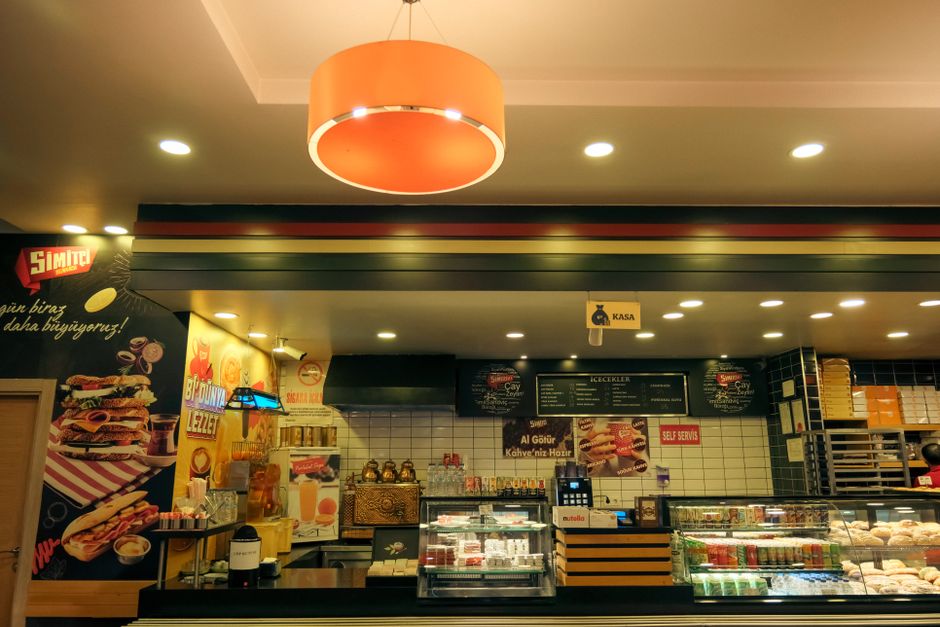
Photo by Murat Kahraman / Pexels
Also considered
Several real products deserve a shortlist even when they are not the clearest fit for a small restaurant wall. Their strengths range from low-cost device licensing to enterprise security and commercial playback. Public video-wall pricing is not always available, so treat quote-based options as a signal to request both software and required-hardware costs.
- NoviSign: Best for template-heavy signage and a built-in wall editor; starts at $14/screen/month annually.
- TelemetryTV: Best for dashboards, APIs, and custom full-resolution walls; starts at $8/device/month annually.
- Rise Vision: Best for schools and emergency communications; starts at $11/display/month.
- Fugo: Best for teams that want a polished cloud editor and broad player support; video-wall pricing is quote-based.
- BrightSign: Best for commercial players and synchronized playback where hardware reliability leads; pricing is quote-based.
- Appspace: Best for enterprise workplace communications and managed deployments; pricing is quote-based.
- Navori: Best for professional multi-site and data-driven networks; pricing is quote-based.
- Userful: Best for centrally managed enterprise display infrastructure and control rooms; pricing is quote-based.
- PiSignage: Best for technical teams standardizing on Raspberry Pi players; confirm current wall and hosting costs.
- Xibo: Best for self-hosted or managed open-source CMS workflows; wall hardware and hosting vary.
- Signagelive: Best for organizations with mixed commercial display and player fleets; pricing is quote-based.
Who should not choose Visora?
Do not choose Visora as the only system when the project needs frame-locked broadcast playback, many live HDMI sources, asymmetric LED canvases, 24/7 control-room redundancy, or certified commercial calibration. Visora is designed for approachable digital signage on paired screens. An AV integrator, processor, and commercial display system fit those higher-risk requirements better.
Visora is also unnecessary when one large television solves the visibility problem. Four consumer TVs add seams, mounts, cables, power points, and four failure surfaces. A single 75-inch or 85-inch display can be cleaner for a menu or promo that does not need the visual scale of a tiled wall.
For businesses planning the same content across many venues rather than one tiled canvas, read the multi-location digital signage guide. Fleet management and local permissions are a different problem from synchronizing adjacent panels.
How should you test a video wall before rollout?
Build a two-screen pilot with the exact televisions, content, browser or player, and network you plan to deploy. Test it through a busy operating period, an internet interruption, and a full power restart. Measure readability, alignment, color matching, timing drift, recovery, staff update time, and whether the wall improves a real customer decision.
Run the pilot in this order:
- Mount or place two screens at the real viewing height.
- Match picture settings and disable overscan and motion smoothing.
- Publish one still image that exposes alignment errors.
- Publish one typical video and watch for drift at the panel edge.
- Disconnect the network and document what continues playing.
- Restore power and time how long the wall takes to recover.
- Ask the manager who will own updates to change one price or promotion.
Expand when customers can read the content, staff can update it, and the wall recovers without intervention. Change the hardware when sync, recovery, or routing fails. Cancel the wall when one large screen would deliver the same outcome.
Frequently asked questions
What is the best video wall software for small businesses in 2026?
Visora is a strong choice for a small business building a two-to-four-TV wall for menus, promotions, or brand visuals. Pro costs $59 per month for 4 screens, and the wall add-on is $25 per month. Choose commercial AV hardware when precise frame timing or many live sources are essential.
Can regular TVs work as a video wall?
Yes. Use matching models, identical picture settings, reliable browser or player connections, and mounts that allow careful alignment. Regular TVs still have wider bezels and less consistent 24/7 behavior than commercial panels, so test them before permanent installation.
How much does video wall software cost?
Software starts at $0 for basic signage, but a usable wall costs more. A four-screen Visora wall needs the $59 Pro plan plus its $25 add-on. Hardware, mounts, cabling, installation, and controllers cost extra.
Do I need a video wall controller?
Use a controller when one source must span several displays reliably, when timing must be precise, or when staff need to route multiple live inputs. A browser-coordinated wall can be enough for static menus, images, and moderate-motion promotions.
Can video wall software remove TV bezels?
No. Bezel compensation can hide the image area that would appear behind the frames, but the physical seams remain. Thin-bezel commercial LCD panels or direct-view LED are better when the image must look uninterrupted.
Is a video wall good for a restaurant or sports bar?
It can be, especially for a large brand visual, one featured promotion, or one sports feed. Separate screens are usually clearer for independent menus or many live channels. Keep important text away from panel seams.
How should I test TV video wall software before buying?
Run a two-screen pilot with the real TVs, network, mounts, and content. Test busy service, a network loss, and a power restart. Check alignment, color, readability, sync drift, recovery, and how quickly staff can make an update.
Ready to test a wall with the TVs you already own? Review Visora pricing, pair the first screens, and validate the content workflow before investing in controllers or commercial panels. Start free on one screen, then upgrade only when the wall design is proven.