
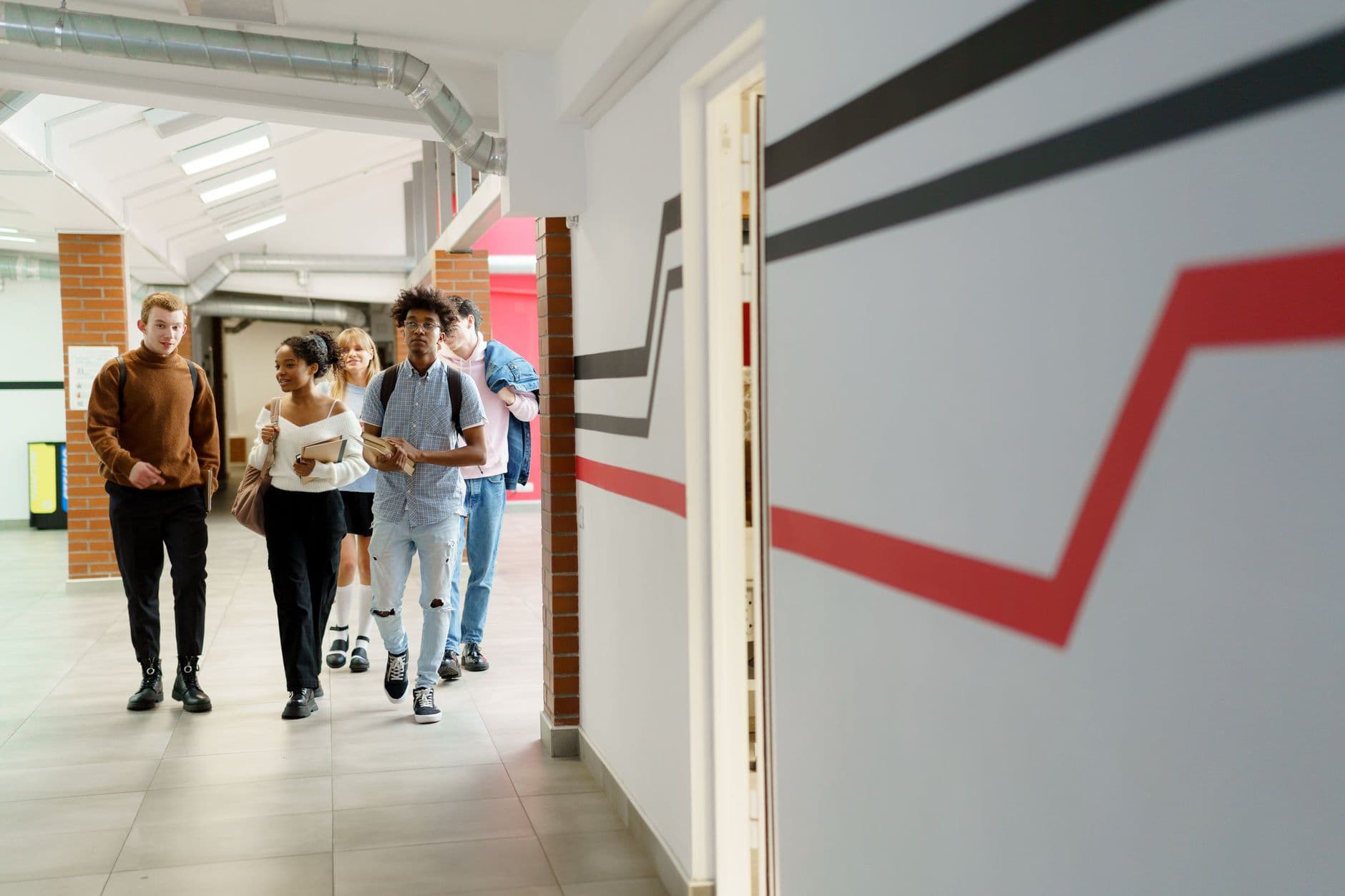
Digital signage for schools turns existing TVs and displays into a managed campus communication channel. Start with one high-value location, give the screen a specific audience and owner, and publish information people can act on. Visora supports a low-cost pilot, while safety, privacy, accessibility, and network requirements remain school-level decisions.
What is the best digital signage for schools in 2026?
The best digital signage for schools in 2026 is the system that matches content to campus zones, gives named staff clear publishing responsibility, and fits the emergency communication plan. Visora is a practical choice for a low-risk pilot because its Free plan supports 1 screen at $0 (with a Visora watermark and a Visora promo every 10 minutes) and a compatible browser can pair in about 30 seconds. Schools needing certified emergency alert integrations should validate those requirements separately before purchase.
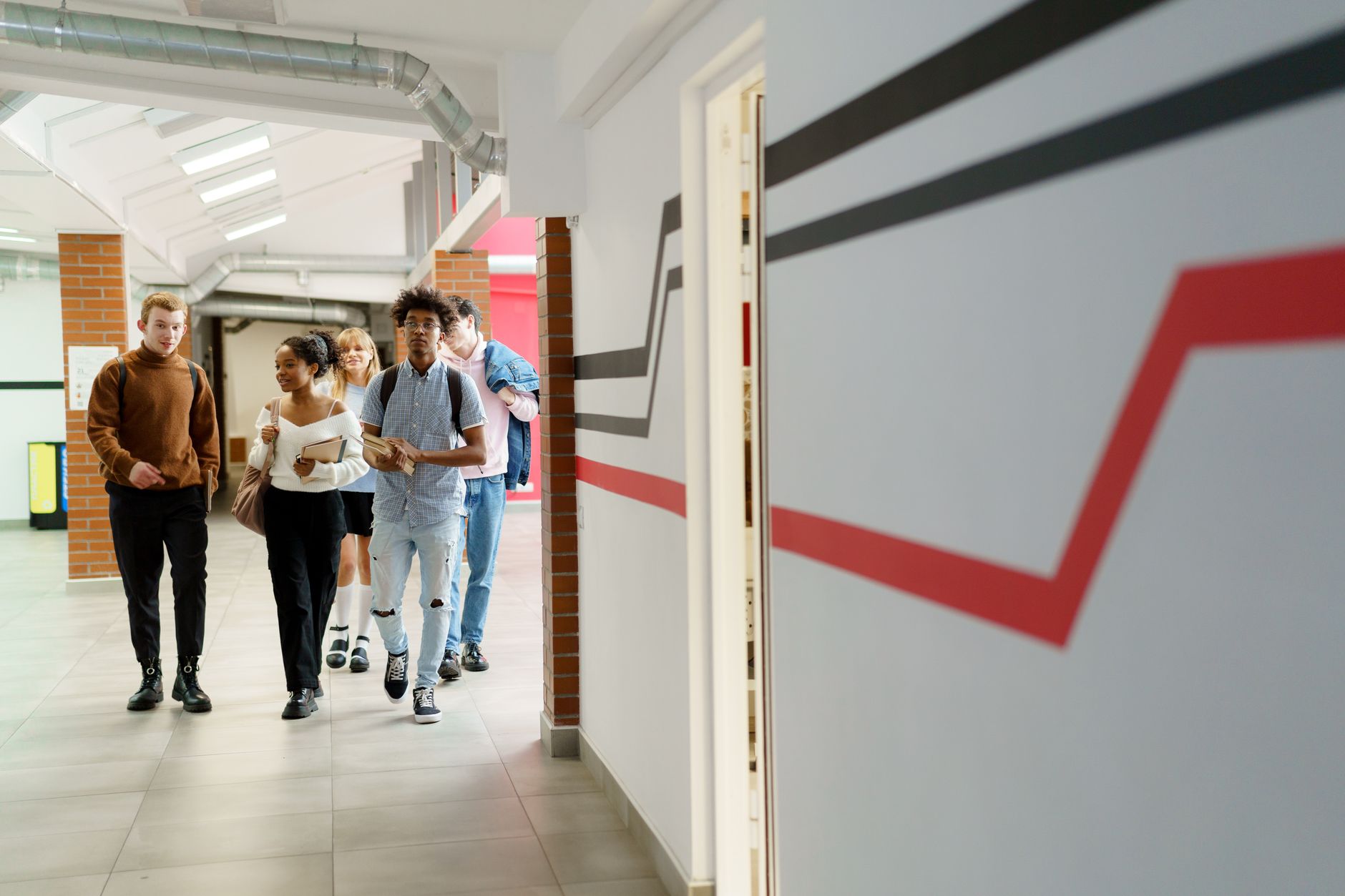
Photo by cottonbro studio / Pexels
That distinction matters. A hallway display can make schedules and directions easier to see, but it is not automatically a life-safety system. Treat daily communication, emergency alerts, classroom presentation, interactive wayfinding, and student records as different requirements. A product that handles one well may not satisfy the others.
Visora fits schools that want to test browser-based content on a compatible TV without buying a proprietary media player first. Its digital signage solutions cover the core publishing workflow. A district seeking Common Alerting Protocol support, student information system integrations, single sign-on, formal uptime commitments, procurement terms, or on-site installation should document those needs before choosing any platform.
Why does school digital signage need a clear purpose?
Kitcast's 2026 analysis of 10,000+ live screens found that 94% of education screens show weather and 74% show a calendar, yet education had the oldest median content at 49.3 days. A screen without ownership can become stale even when its widgets remain current. (Kitcast)
A screen is useful when it answers a recurring question in the place where that question occurs. In an entrance, the question may be where to check in. In a cafeteria, it is what is being served. In a university student center, it may be when advising closes or where a club meets. The same test applies to corporate office screens in a lobby or break room.
Write a one-sentence job for every proposed display: "This screen helps visitors find the correct office without joining the reception line." If the team cannot finish that sentence, do not buy the screen yet. A generic loop of logos, stock photos, and old event flyers adds another surface to maintain without solving a communication problem.
Define the primary audience, the decision the display supports, how often the information changes, who approves it, and what appears when data or internet access fails. This small content brief is more valuable than starting with screen size.
Where should campus screens go?
Pathify's 2025 survey of 1,010 U.S. college students found 60% spent more than five minutes locating essential information, and 27% spent at least ten minutes. Campus digital signage works best at decision points where a clear direction can remove that search. (EDUCAUSE)
Map traffic before mounting hardware. Walk the campus during arrival, class changes, lunch, dismissal, and a public event. Note where people stop, ask staff for help, turn around, or block a corridor while reading. The best sightline is not always the largest blank wall.
| Campus zone | Primary audience | Best screen job | Poor use |
|---|---|---|---|
| Main entrance | Families and visitors | Welcome, check-in, directions, today's exceptions | A long rotating news feed |
| Hallway junction | Students and staff | Room changes, next events, directional cues | Dense policy text |
| Cafeteria | Students | Menu, service changes, nutrition links, waste reminders | General announcements that hide the menu |
| Student commons | Students | Clubs, advising, deadlines, transport, events | One message copied from the entrance |
| Athletics lobby | Teams and spectators | Game schedule, venue rules, recognition, wayfinding | Unrelated classroom notices |
| Staff area | Employees | Coverage, training, operational reminders | Student-facing promotions |
Mounting, power, glare, tamper resistance, sound, and accessibility all affect the choice. The digital signage hardware requirements guide explains when an existing TV is enough for a pilot and when a commercial display or separate player is justified.
What should schools show on each screen?
In a 2025 NSPRA and SchoolStatus study, districts that evaluated student-led content reported that 96% earned at least the same engagement as staff-created content, including 61% that saw higher engagement. The sample was limited, but it supports giving students a supervised editorial role. (NSPRA and SchoolStatus)
Build each playlist around timely, local, and actionable information. A strong school screen may show today's bell schedule, one upcoming deadline, one approved student story, a room change, and a QR code that leads to a mobile-friendly page. It should not make a person wait through six slides to learn where an event is held.
Use the screen for:
- Today's schedules, calendar exceptions, closures, and room changes
- Cafeteria menus and verified service notices
- Event wayfinding, visitor check-in instructions, and transportation updates
- Advising hours, registration deadlines, financial aid reminders, and library services
- Club meetings, performances, athletics, student work, and approved recognition
- Short wellness, accessibility, and campus resource messages
- Approved emergency instructions when connected to the institution's validated alert workflow
Give routine slides an expiration time. Event promotion should disappear after the event. A changed room should return to the standard schedule. Student contributors can propose or create content, but an authorized adult should approve public messages, names, and images. For more formats and rotation ideas, use the digital signage content ideas guide.

Photo by Yan Krukau / Pexels
How should schools use screens during an emergency?
Campus Safety's 2025 survey found 91% of respondents used email, 86% used SMS, and 74% used intercom or overhead paging for emergency communication. Digital signs should add a visible channel to that mix. They should never become the only way a campus sends urgent instructions. (Campus Safety)
Begin with the emergency plan, not the signage dashboard. Safety leaders should decide who can issue an alert, which source is authoritative, how messages differ by location, what happens during a network outage, how normal content returns, and how every action is logged. IT and communications teams then test whether the screen system can support that approved workflow.
Use preapproved plain-language templates for likely events, but allow authorized staff to change details when conditions demand it. A laboratory, residence hall, gym, and parking structure may require different instructions. Color alone is not enough. Every alert needs readable words, strong contrast, and an equivalent message through other approved channels.
Visora should not be presented as a replacement for alarms, paging, SMS, emergency management software, or staff procedures. If a formal alert integration or certification is required, obtain written vendor documentation and run observed drills before relying on it.
Accessibility, Privacy, and Content Governance
The U.S. Department of Education's 2025 IDEA report counted 6,900,750 students ages 6 through 21 served under IDEA Part B, or 10.2% of that age-range population. Readable, understandable, and accessible communication is a core campus requirement, not a final design adjustment. (U.S. Department of Education)
Design for people moving through real spaces. Use large type, high contrast, short sentences, consistent locations, and enough display time to read each message. Do not put essential meaning only in color, sound, animation, or a QR code. Provide the same critical information through accessible web pages, audio, print, staff support, or other formats required by your institution.
Treat public displays as public. Names, grades, disciplinary details, student IDs, individual schedules, and identifiable education records can create serious privacy problems. The U.S. Department of Education's FERPA guidance explains protected education records and disclosure rules. Ask the school's privacy or legal lead to approve policy, consent, directory-information, and retention decisions.
Use a simple permission model:
- A district or campus owner defines policy, templates, crisis boundaries, and brand rules.
- Department editors submit or schedule content only for their assigned screens.
- A reviewer approves sensitive, student-facing, or campus-wide messages.
- The system records who changed content and when.
- A named backup can remove inaccurate or inappropriate content quickly.
Governance protects the screen from both misuse and neglect. It also keeps IT from becoming the copy desk for every club meeting and lunch update. Volunteer-run church digital signage needs the same owner, reviewer, and backup roles.
How much does school digital signage cost?
Visora uses bundled pricing: $0 for 1 screen, $29 monthly for 2, $59 for 4, and $159 for 10. Hardware, mounts, power, installation, connectivity, and any specialized integrations are separate. A school can test the content workflow on an existing compatible TV before funding a larger deployment. See pricing.
Budget in layers. Software is only one line. Include the display, mount, electrical work, networking, player if required, installation, content creation, staff training, support, warranties, and replacement reserve. Outdoor screens and interactive kiosks need separate site and accessibility reviews.
| Visora plan | Monthly price | Included screens | Campus fit |
|---|---|---|---|
| Free | $0 | 1 | One-screen proof of concept, 200 MB, Visora watermark and a Visora promo every 10 minutes |
| Starter | $29 | 2 | Entrance plus cafeteria or student commons |
| Pro | $59 | 4 | Scheduling and dayparting across a small building |
| Business | $159 | 10 | A larger campus group with priority support |
Starter can add up to 3 screens at $12 per month each. Pro can add up to 2 at $15 each. Business can add up to 5 at $17 each. These are bundled plans, not per-screen base prices. Compare the current Visora pricing with the number of displays you will activate and the school-specific requirements Visora does not provide.
Ready to test the message before funding the network? Pair one compatible campus TV with Visora in about 30 seconds. Start on the $0 plan, assign one owner, and run a focused 30-day pilot: download Visora or review Visora pricing.
A 30-Day Campus Rollout Plan
Kitcast's 2026 education benchmark reported only 78.4% of devices were active in the prior 90 days, while the typical education workspace had 1 screen and a mean of 3.6. A small pilot can expose ownership, connectivity, and content problems before they multiply. (Kitcast)
Choose one building and one communication problem. Do not start with a campus-wide hardware order. A useful pilot can run on an existing compatible TV in the entrance, cafeteria, or student commons.
| Period | Action | Evidence |
|---|---|---|
| Days 1 to 3 | Map audience, sightline, questions, power, and network | Baseline question count and photos from viewing distance |
| Days 4 to 7 | Assign owner, reviewer, backup, and expiration rules | Approved workflow and sample content |
| Week 2 | Launch one screen with three to five message types | Publishing time, readability feedback, uptime |
| Week 3 | Test one schedule change and one correction | Time from decision to accurate screen |
| Week 4 | Review results with students, staff, facilities, IT, and accessibility leads | Keep, revise, relocate, or expand decision |
Include a fallback slide with a phone number, desk location, or simple instruction that remains useful when a feed fails. Photograph the screen from the actual approach path at several times of day. Ask people what they understood, not whether they liked the design.

Photo by Yan Krukau / Pexels
Measuring Whether the Network Works
Pathify's 2025 higher education survey found 47% of students had missed a critical deadline because they were unaware it was due, while 65% wanted easier discovery of clubs and groups. Screen success should be measured through fewer missed actions and faster answers, not impressions alone. (EDUCAUSE)
Pick two or three measures tied to the screen's job. Entrance signage can track directional questions at reception. A university services screen can track scans to an advising page and missed-deadline reports. A cafeteria screen can measure how often staff must explain a substitution already shown. IT can track uptime, failed feeds, and time to recovery.
Review content operations too:
- Percentage of slides with a named owner and expiration date
- Time required to publish an approved correction
- Number of outdated or conflicting messages found in a weekly audit
- Readability failures reported by students, staff, or accessibility reviewers
- Percentage of screens online during the planned operating window
- Staff time spent answering questions the screen is supposed to resolve
Do not attribute attendance, enrollment, safety, or academic changes to the screens without a credible evaluation. Digital signage is a communication channel. Its strongest evidence is accurate information reaching the right place at the right time.
What do schools ask before buying digital signage?
GreatSchools' 2025 survey of 1,000+ K-12 parents found 74% of parents likely to recommend their school said information was easy to find, compared with 20% among those unlikely to recommend it. Clear campus information supports trust, but screens must work alongside websites and direct communication. (GreatSchools)
What is the best digital signage for schools in 2026?
The best system matches content to campus zones, assigns clear publishing responsibility, and fits the institution's emergency plan. Visora is a practical pilot option because the Free plan supports 1 screen at $0 (with a Visora watermark and a Visora promo every 10 minutes) and a compatible browser can pair in about 30 seconds. Validate certified emergency integrations separately.
What should a school show on digital signage?
Show information that helps the audience make the next decision: today's schedule, room changes, cafeteria menus, event directions, deadlines, transportation updates, student work, and approved safety instructions. Give each screen one primary audience and a named owner who removes expired content.
Can digital signage replace emergency notification systems?
No. It is one visible channel in a multi-channel plan. Continue using the approved combination of email, SMS, paging, alarms, mobile alerts, and staff procedures. Test screen takeover, alert integration, offline behavior, authorization, and recovery with campus safety leaders.
How many screens should a school start with?
Start with 1 or 2 screens in high-value locations such as the entrance and cafeteria or student commons. Run the pilot for 30 days, measure content accuracy and resolved questions, then expand only when each new screen has a purpose, owner, and support plan.
How much does school digital signage cost?
Software, displays, mounts, installation, connectivity, and support are separate budget layers. Visora starts at $0 for 1 screen. Starter costs $29 monthly for 2, Pro costs $59 for 4 with scheduling, and Business costs $159 for 10. Existing compatible TVs can reduce pilot costs.
How do schools protect student privacy on digital signs?
Treat hallway, lobby, cafeteria, and reception displays as public. Do not publish grades, discipline, individual schedules, student IDs, or identifiable records without an approved legal basis. Apply consent and directory-information rules, restrict publishers, document approvals, and maintain a rapid removal process.
Can universities use the same digital signage approach?
Yes, but universities usually need more zones, owners, and data connections. Separate admissions, residence life, dining, athletics, libraries, student services, and academic buildings. Pilot one building, confirm identity, accessibility, privacy, emergency, and network requirements, then standardize templates and permissions before expanding.
Ready to give one campus screen a clear job? Test Visora on 1 compatible screen for $0, document the owner and success measure, then expand only if the pilot works. Explore digital signage solutions, download Visora, or compare plans on Visora pricing.