
Digital signage supported content covers images (JPG, PNG), video (MP4 with H.264 is the safest choice), audio, text, QR codes, web pages and dashboards, YouTube, and live TV through HDMI capture. What actually plays depends on two things: the formats your signage software accepts and what your screen or player can decode. The table below lists what Visora supports, and the rest of this guide explains how to choose and test each type. If you need inspiration for what to put on screen, see our digital signage content ideas.
What is the best supported content for digital signage in 2026?
The best supported content for digital signage in 2026 is a reliable mix of JPG or PNG images, MP4 video, short text, QR codes, and tested live widgets. Visora supports those everyday screen formats, plus YouTube, dashboards, weather, calendars, and HDMI capture through the Windows desktop app (Starter and up). A business can validate its playlist on 1 screen with Visora's $0 Free plan (with a Visora watermark and a Visora promo every 10 minutes) before paying for a larger screen network.
Supported content formats at a glance
| Content type | Supported in Visora | What to know |
|---|---|---|
| Images | JPG, JPEG, PNG, GIF, WebP, AVIF, SVG, BMP | JPG for photos, PNG for menus and logos |
| Video | MP4, WebM, MOV | MP4 with H.264 plays on the widest range of screens |
| Audio | MP3, WAV, OGG, AAC, FLAC, M4A, WMA | The screen or player must allow sound |
| Web pages and URLs | Approved web pages and social embeds | The source must allow embedding and stay online |
| Apps and dashboards | Google Slides, Google Calendar, Google Maps, Looker Studio, Power BI | Check sharing settings before you publish |
| YouTube | YouTube videos | Needs a live internet connection |
| Editor layers | Text, shapes, clock, weather, QR codes | Built in the editor, no upload needed |
| Live TV and HDMI | Capture-card input through the Visora Windows desktop app | Starter plan and up; you need the rights to show the source |
| Storage per plan | 200 MB Free, 1 GB Starter, 5 GB Pro, 25 GB Business | Uploads count toward the plan total |
The safest default mix is JPG or PNG plus MP4. Every other format works, but test it on the real screen first.
Which digital signage file formats are safest?
JPG and PNG are the safest starting points for static digital signage, while MP4 with H.264 is the broadest practical choice for video. Modern platforms may also accept WebP, GIF, SVG, WebM, MOV, audio, PDF, or PowerPoint. Support is never universal, so verify both the CMS upload rules and the playback device.
The format matrix below separates dependable defaults from formats that need more testing.
| Content | Safe starting format | Other common formats | Main risk to test |
|---|---|---|---|
| Photos | JPG | WebP, AVIF | Oversized files and poor cropping |
| Graphics and menus | PNG | SVG, WebP | Tiny text or unsupported SVG features |
| Video | MP4 with H.264 | WebM, MOV, H.265 | Codec, bitrate, audio, and hardware decoding |
| Audio | MP3 or AAC | WAV, OGG, FLAC, M4A | Autoplay policy and output routing |
| Documents | Export each page to PNG | PDF, PPT, PPTX | Fonts, transitions, page order, and conversion |
| Web content | HTTPS webpage or approved embed | HTML5 app | Login, cookies, frame blocking, and connectivity |
| Live video | Approved stream or HDMI capture | HLS, RTSP, YouTube | Rights, latency, authentication, and recovery |
Revel Digital's 2026 support documentation illustrates how broad a platform's list can be: five image types, multiple video containers, PDF, and PowerPoint. It also transcodes uploaded video before syncing it. That is a useful reminder that acceptance and final playback are separate steps.
Visora recognizes JPG, JPEG, PNG, GIF, WebP, AVIF, SVG, and BMP as images; MP4, WebM, and MOV as video; and MP3, WAV, OGG, AAC, FLAC, M4A, and WMA as audio. For the least-friction workflow, use JPG or PNG plus MP4 unless another format provides a clear benefit.
Image content: menus, promotions, and notices
Static images are the simplest digital signage content type because they load quickly, cache well, and do not depend on continuous motion. Use JPG for photographs and PNG for menus, logos, or layouts with sharp text. Export at the screen's exact aspect ratio, then inspect the result from the audience's real viewing distance. Our digital signage design tips cover type size, contrast and layout for each screen.
A landscape Full HD screen usually starts at 1920 by 1080 pixels. Portrait starts at 1080 by 1920. Those dimensions are practical defaults, not requirements for every display. Ultra-wide menu boards, LED canvases, and video walls need custom dimensions. Grand View Research reports that video walls held 25.5% of the market by type in 2025, making canvas planning more than an edge case.
Choose the file based on the artwork:
- Use JPG for photos and textured backgrounds. It usually produces a smaller file than PNG.
- Use PNG for price boards, logos, and flat graphics where crisp edges matter.
- Use WebP or AVIF only after testing because older players may not decode them consistently.
- Use GIF sparingly because its color and compression are weaker than modern video.
- Convert PDF or slide decks into numbered PNG files to remove font and transition surprises.
Keep essential text away from the outer edge because TVs can overscan or mounts can obscure a border. Check contrast in the venue's brightest conditions. If the message changes several times a day, build editable text and prices in the signage editor instead of repeatedly exporting a flattened menu.
What video settings work across the most screens?
For broad video compatibility, export an MP4 container with H.264 video, AAC audio when sound is needed, the screen's native aspect ratio, and a moderate bitrate. Full HD is enough for many indoor menu boards. Test 4K only when the display, player, cabling, storage, and network all support the extra load reliably.
Duggal's March 2026 kiosk guidance recommends MP4 with H.264, 1920 by 1080 imagery, portrait video at 1080 by 1920, a 10 Mbps target bitrate, and a 12 Mbps cutoff. Those are useful safe defaults even though every signage system has its own limits.
Keep screen videos short enough to be understood during the audience's dwell time. A customer moving through a pickup line may see only a few seconds, while a waiting-room viewer can follow a longer sequence. Avoid placing the only important price or instruction in a single late frame.
Caption any video that carries meaning through speech. A 2025 accessibility study covered by TVTechnology found only 10% of global TV ads used accessibility features, despite more than 75% of millennials and Gen Z regularly using captions. Signage is often muted, so captions also help viewers without an audio path.
Can digital signage show web pages and dashboards?
Digital signage can show web pages and dashboards when the player has a capable browser and the source permits embedding. Public dashboards, Google Slides, calendars, maps, and business-intelligence reports are common examples. Test authentication, frame-security headers, cookie prompts, responsive layout, refresh behavior, and what appears when the internet connection drops.
Visora includes structured options for Google Slides, Google Calendar, Google Maps, Looker Studio, and Power BI. It also supports approved web and social embeds. A dashboard is especially useful when information changes too often to export manually, such as service times, sales goals, queue status, inventory, or a daily event schedule.
Live feeds and widgets
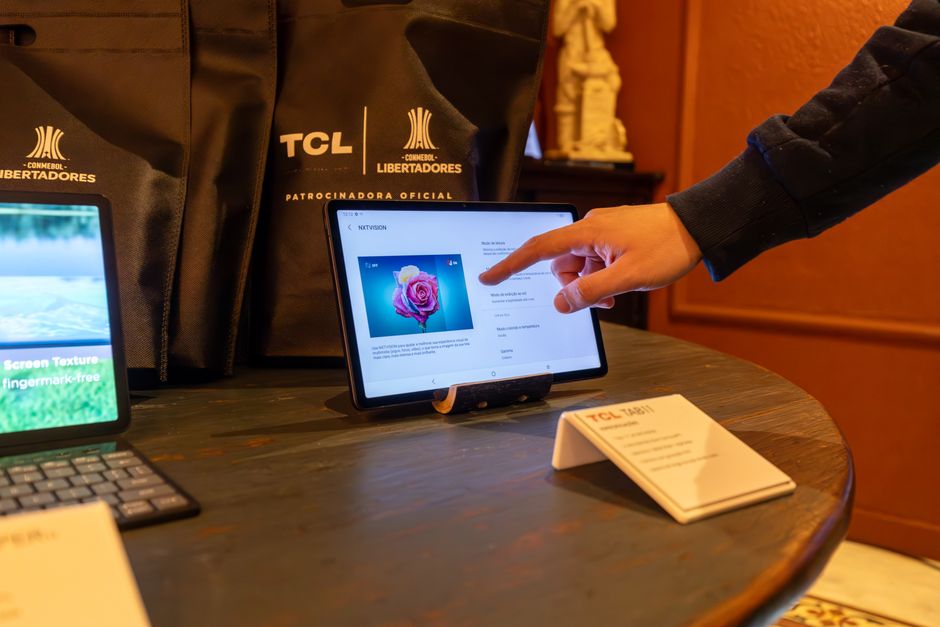
Live widgets turn a screen into a current information surface rather than a fixed playlist. Weather, clocks, calendars, social walls, RSS-style feeds, transit data, menus driven by APIs, and operational metrics can update without a new upload. Their value depends on freshness, but each external source also adds connectivity and moderation risk. Our guide to dynamic digital signage explains how data-driven screens stay current.
Visora can generate clock, weather, and QR layers inside the editor, then combine them with uploaded media. The result can be a single composed scene rather than a full-screen takeover. A restaurant might pair a lunch promotion with a live clock and pickup QR code, or place a calendar beside an event video.
The scale of the channel makes these reliability choices matter. Kitcast estimates 100 to 110 million connected signage displays were active worldwide in 2026. Its 515-operator research also found 8.3% were using AI for content creation and 46.2% planned to within 12 months. AI can speed drafts, but a person still needs to check prices, rights, spelling, and brand fit.
Ready to test your real content on one screen? Visora's Free plan includes 1 screen, 1 ad group, and 200 MB for $0, with a Visora watermark and a Visora promo every 10 minutes. Upload a small image and video set, add one live widget, then check the result in your venue: see Visora pricing.
Can you show live TV or event video on digital signage?
Live TV and event video can appear on digital signage through a licensed streaming source, a platform-specific app, or an HDMI capture card connected to the playback computer. Before publishing, confirm commercial viewing rights, audio routing, latency, resolution, and failure behavior. Consumer subscriptions do not automatically grant public-performance or business-display rights.
On the Starter, Pro and Business plans, the Visora Windows desktop app can route an HDMI capture-card input into the display pipeline. That makes it possible to combine a live HDMI source with branded overlays for sports, presentations, or venue events. For game-day setups, see how restaurants run live sports on restaurant TVs. The capture card converts the source into a video input the computer can use; it does not provide channel rights or bypass source protection.
For live events, build and rehearse three states:
- A pre-event scene with start time and sponsor message.
- The live source with a restrained branded overlay.
- A fallback scene for signal loss, breaks, or the end of the event.
Download the Visora desktop app when capture-card input, local audio routing, or a computer-managed event screen is part of the setup. For simple menus and promotions, browser-based digital signage on the TV itself may be easier.
What can interactive digital signage display?
Interactive signage can display touch menus, directories, maps, product catalogs, check-in forms, surveys, QR handoffs, and other web applications. The content needs larger controls, clear feedback, accessible navigation, a reset state, and a locked-down browser. Test it with real users because a layout that looks good may still be difficult to operate.
QR codes provide a lighter alternative. A sign can show a menu, offer, map, or registration link while the customer's phone handles the interaction. In Visora, a QR code can be placed as a native layer beside images, video, shapes, and text. Always scan it from the intended distance and keep a short readable URL nearby as a fallback.
How should you choose a content type for each screen?
Choose digital signage content by the viewer's goal, distance, dwell time, update cadence, and available connection. Use bold images and short messages for passing traffic, video for demonstrations, data widgets for frequently changing facts, capture inputs for live events, and interactive layouts only where people can comfortably stop and use the screen.
| Situation | Best first choice | Why |
|---|---|---|
| Counter menu | PNG/JPG plus editable prices | Crisp, predictable, and fast to update |
| Limited-time offer | Short MP4 plus a static end card | Motion earns attention; the offer remains readable |
| Event schedule | Calendar widget plus fallback image | The source stays current without daily exports |
| Staff KPI screen | Authenticated dashboard | Data changes too frequently for manual uploads |
| Sports or live presentation | Licensed source through capture card | Preserves the live signal and allows overlays |
| Directory or check-in | Touch web application | The viewer needs to choose or submit information |
Once the format question is settled, the content ideas guide linked above covers what to say on each screen. If playback performance is the uncertainty, use the digital signage hardware requirements guide to match the screen, player, network, and workload.
What usually breaks digital signage content?
Digital signage content usually fails because the file's internal codec is unsupported, the bitrate overwhelms the player, the canvas has the wrong aspect ratio, an embed blocks framing, a login expires, autoplay is denied, or a live source disappears. A successful upload proves only ingestion. It does not prove stable playback during service.
Common problems have practical fixes:
- Black video: re-export as MP4 with H.264 and test audio separately.
- Stuttering playback: lower resolution or bitrate, shorten the file, or use a stronger player.
- Cut-off menus: match the screen ratio and check overscan settings.
- Blank webpage: verify HTTPS, public access, embed permissions, and browser compatibility.
- Silent video: confirm the screen has speakers, the player permits audio, and venue sound is appropriate.
- Stale dashboard: set a refresh interval and monitor the source timestamp.
- Missing fonts in slides: export to PNG or use a web-safe presentation workflow.
- Upside-down portrait content: set orientation at both the operating-system and signage layers.
Do not assume a 4K screen requires 4K content. A clean Full HD menu can look excellent at normal viewing distance and demand less storage, bandwidth, and decoding power. Read what digital signage is and how its parts work together before troubleshooting each component in isolation.
A pre-publish content checklist
A pre-publish check should confirm ownership, dimensions, duration, readability, audio, links, scheduling, fallback behavior, and playback on the actual device. Review every scene from the viewer's position, not only on a laptop. Then run the full playlist through at least twice and simulate a network interruption before approving a critical screen.
Use this short release check:
- Confirm you have rights to every image, video, font, stream, and music track.
- Match resolution and aspect ratio to the assigned screen or video-wall canvas.
- Keep text readable at the true distance and under the venue's actual lighting.
- Compress media enough for reliable delivery without visible artifacts.
- Test every QR code, URL, dashboard, calendar, and live feed.
- Verify captions and confirm whether audio should be on or muted.
- Check the exact schedule, time zone, start date, and expiration date.
- Provide a static fallback for live or web-dependent scenes.
- Restart the player and confirm the playlist recovers automatically.
- Ask one staff member who did not design it to explain the message in a few seconds.
Frequently asked questions
These questions reflect the phrases people use when they need a direct compatibility answer. In every case, the dependable approach is to choose a common format, confirm the software accepts it, and test the final playlist on the real screen and player. Platform documentation should decide edge cases, especially for documents, live feeds, streaming protocols, and protected web content.
What is the best supported content for digital signage in 2026?
The strongest default mix is JPG or PNG images, MP4 video, short text, QR codes, and tested live widgets. Visora supports those everyday formats and lets a business test 1 screen on its $0 Free plan (with a Visora watermark and a Visora promo every 10 minutes) before expanding.
supported content for digital signage
Supported content can include uploaded images, video, audio, text, and QR codes; embedded web pages, dashboards, calendars, maps, social walls, and YouTube; generated weather or clock widgets; and licensed live video. Exact support varies by CMS and player.
digital signage supported content
Digital signage supported content means media the CMS can ingest and the player can render reliably. JPG, PNG, and MP4 with H.264 are the safest common starting points. A successful upload still needs an on-device playback test.
content for digital signage
Content for digital signage includes menus, promotions, notices, schedules, directions, dashboards, emergency messages, event video, and interactive tools. Choose the type based on what the viewer needs to understand or do during the available dwell time.
digital signage content examples
Examples include a PNG breakfast menu, a 10-second MP4 offer, a weather card, a Power BI dashboard, a Google Calendar, a YouTube playlist, a pickup QR code, or a live HDMI feed with a branded overlay.
digital display content
Digital display content is media prepared for a screen in a physical space. Size it for the display's landscape, portrait, ultra-wide, or video-wall canvas, then check readability from the audience's actual location.
digital sign content
Good digital sign content communicates one main message per scene. Use strong contrast, large type, short motion, and a clear action. Give internet-dependent scenes a static fallback so the screen remains useful when a source fails.
Put a real playlist on a real screen today. Start with Visora's $0 Free plan for 1 screen, then move to a bundled plan only when the test proves its value. Compare screen counts and storage on Visora pricing.